Terno Guide
Set up your organization, connect your data, and unleash your AI Data Scientist, one step at a time.
Step 2 of 7
Create an Organisation
After signing up, you need to create an Organisation in order to start using Terno. Watch the tutorial below for a full walkthrough.
Step 3 of 7
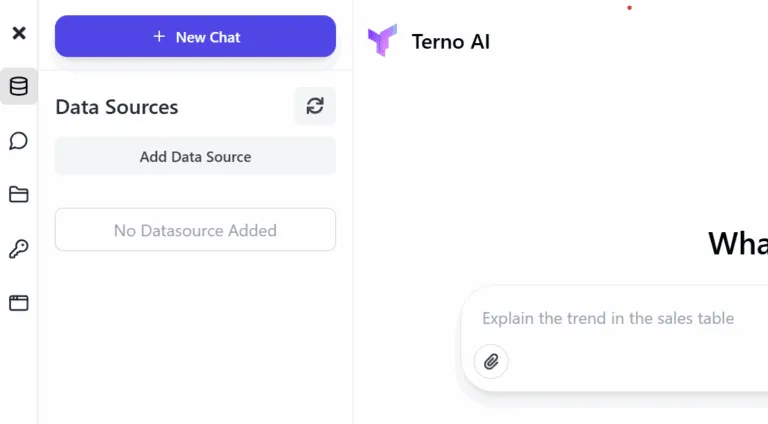
Add a Data Source
There are multiple ways to add data sources to the same organisation, so all your data stays in one place. You just need the connection string, and Terno's connectors handle the rest. You can start researching and analyzing on Terno even without adding a data source, or ask Terno to pull in any data that's publicly available.
Step 4 of 7
Analyze on Terno
You can start analyzing and researching right after step 2, but since Terno is built for data science and analytics, it delivers its best results once it has a connected dataset to work with.
Step 5 of 7
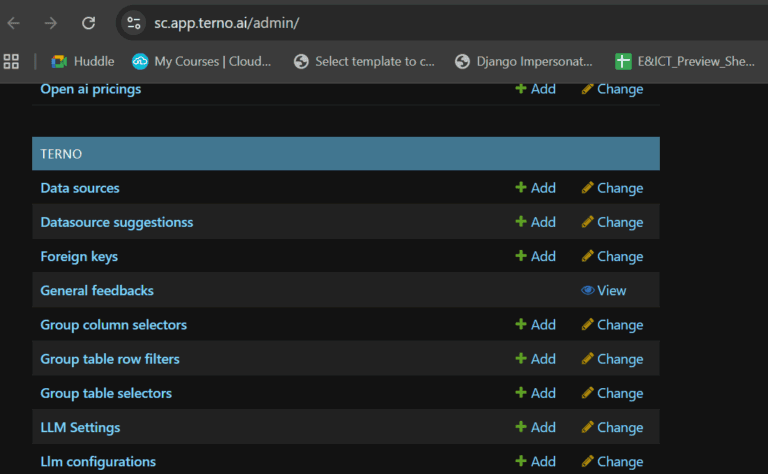
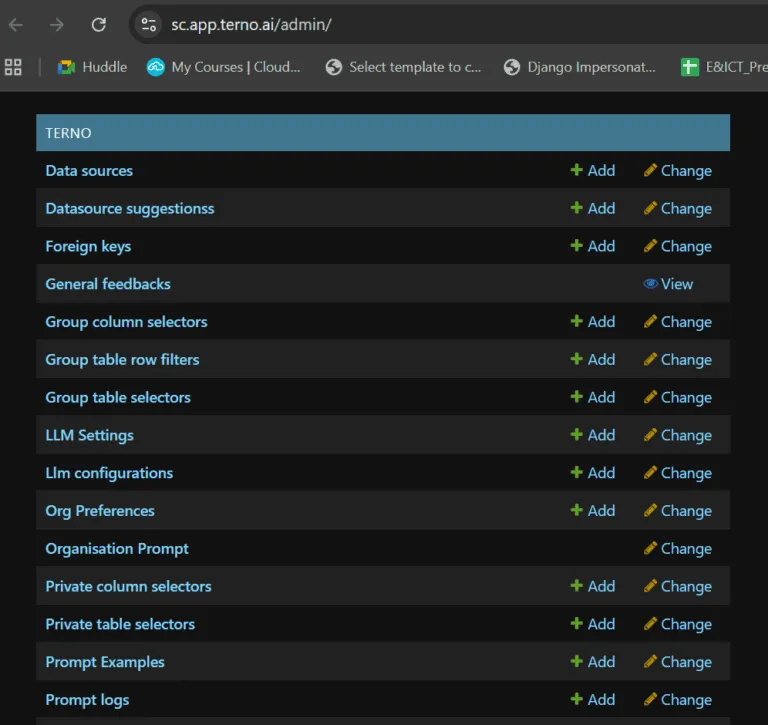
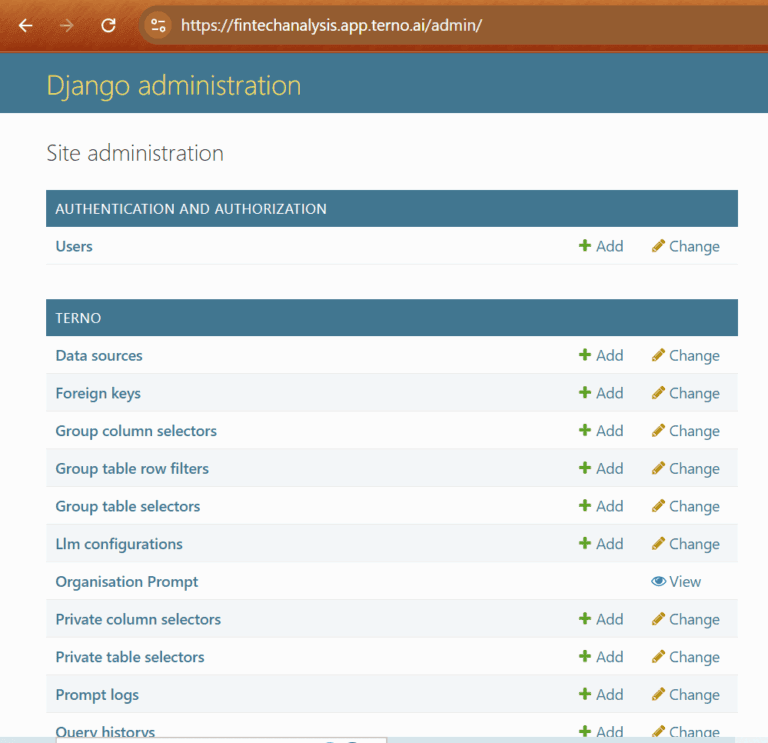
Access Admin Panel
Terno is fully customizable through the admin panel. Add multiple data sources, choose who has access to particular rows and columns, configure which LLM you want to use, and more. We'll cover each of these in later steps. For now, you can use Terno without any additional admin configuration.
Step 6 of 7
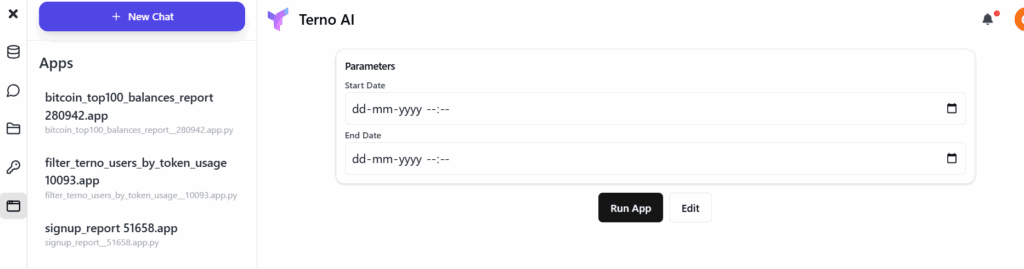
Create Reusable Apps
Terno suggests queries that can be turned into apps. For example, once you connect your website to Terno, you can create an app that checks daily sign-ups. You can revisit that app anytime without spending additional tokens.
Step 7 of 7
Add Organisation Members
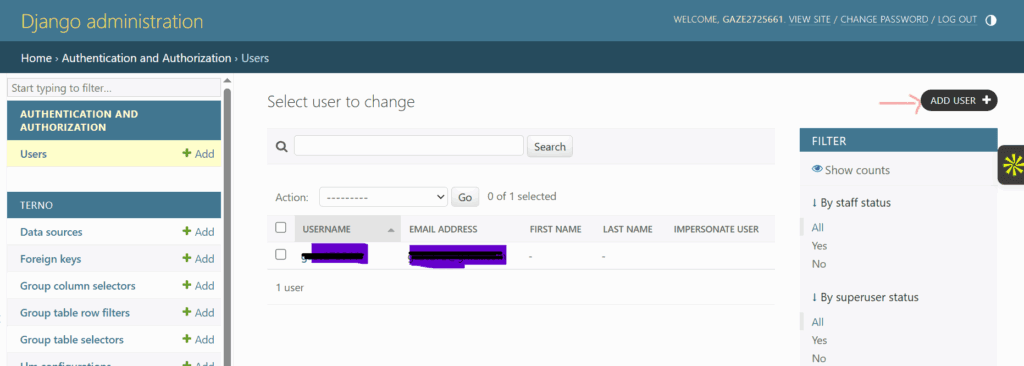
There's no limit to how many people you can add to your organisation. Queries run by added members draw from your organisation's token balance. To add members, go to your admin panel and click Users.
1. Click on Add User
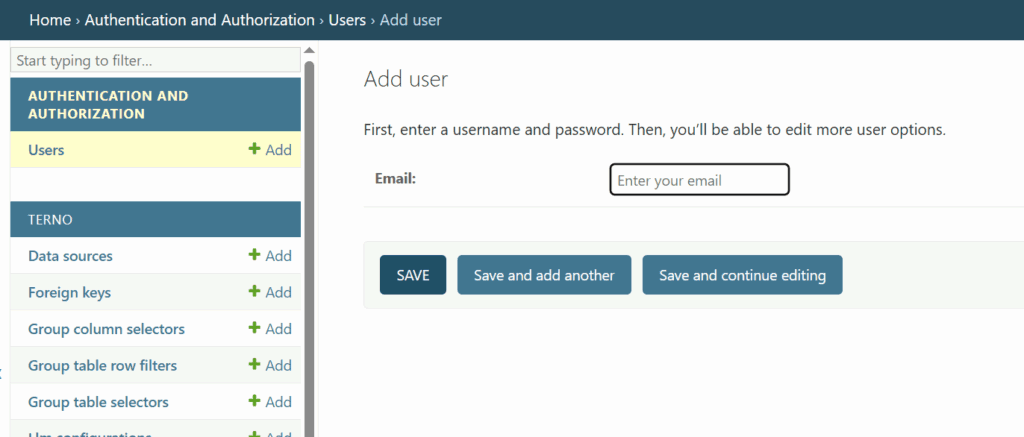
2. Enter the email address of the user you want to add, then click Save.
3. Confirm the user has been added.
Step 1 of 4
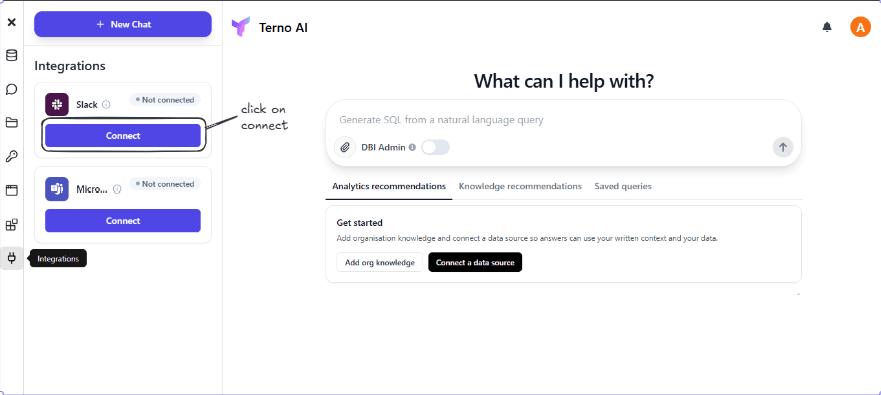
Connect Slack from the Integrations Panel
To connect Slack to Terno AI, open your organisation's dashboard and go to the Integrations panel in the left sidebar. Find the Slack card and click Connect to begin the setup.
Step 2 of 4
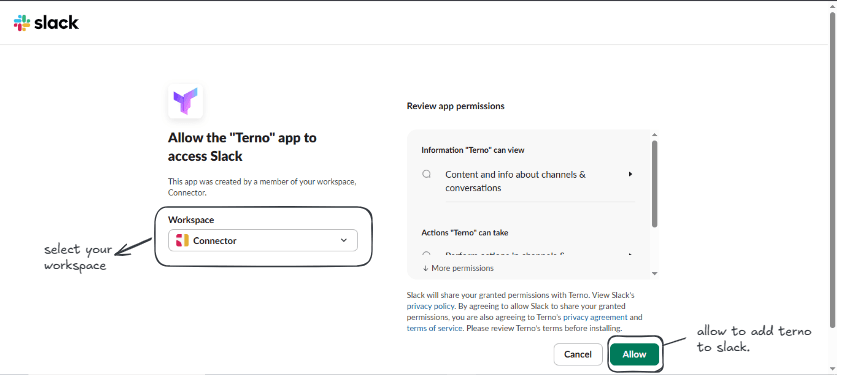
Authorize the Terno App in Slack
Clicking Connect redirects you to Slack's official authorization screen. Select the Slack workspace you want to link, review the permissions Terno AI is requesting, and click Allow to install the Terno app to your workspace.
Step 3 of 4
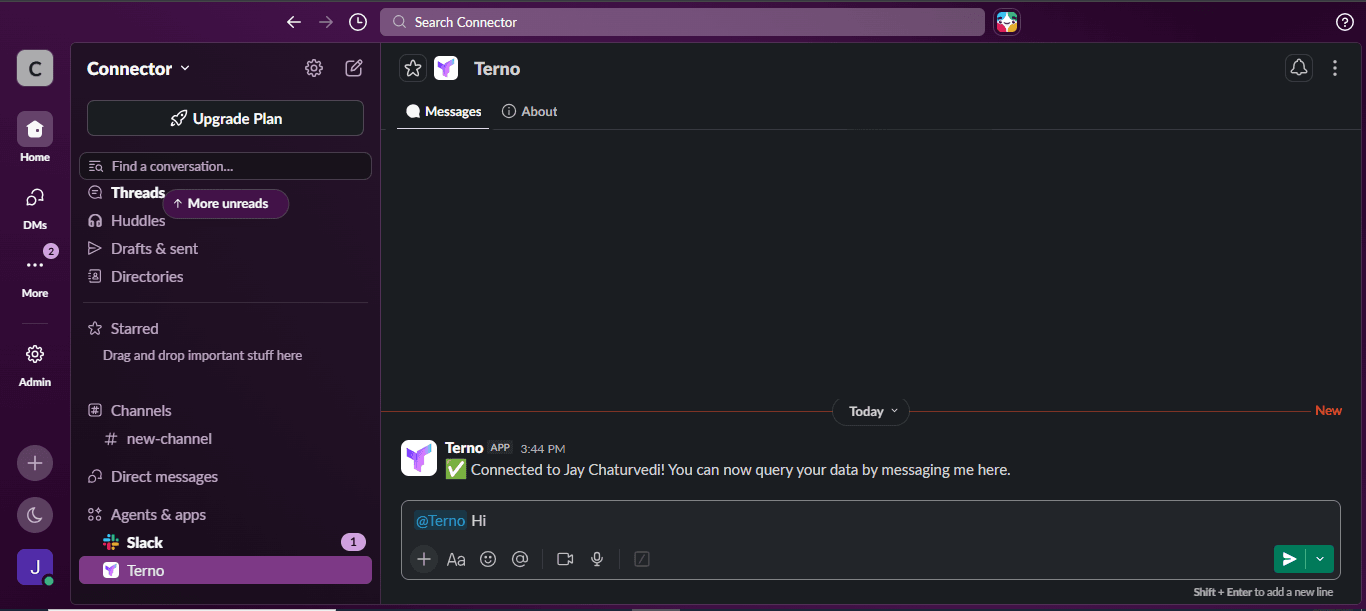
Confirm the Slack Connection
Once authorization is complete, Terno posts a confirmation message directly inside Slack — for example, "Connected to [your name]! You can now query your data by messaging me here." This confirms your Slack workspace is successfully linked to your Terno AI organisation.
Step 4 of 4
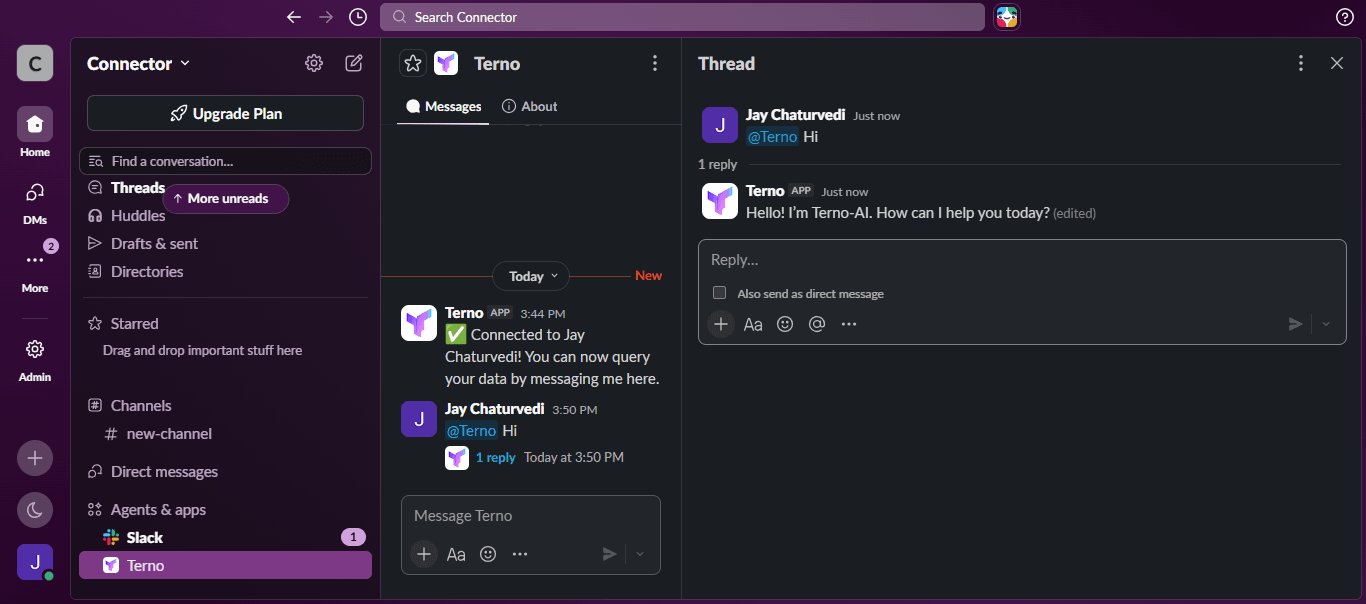
Start Querying Your Data in Slack
With the integration active, you can message @Terno directly in Slack to ask natural language questions about your data. Terno replies in the same thread, so your team can query databases, review results, and collaborate without ever leaving Slack.
Step 1 of 6
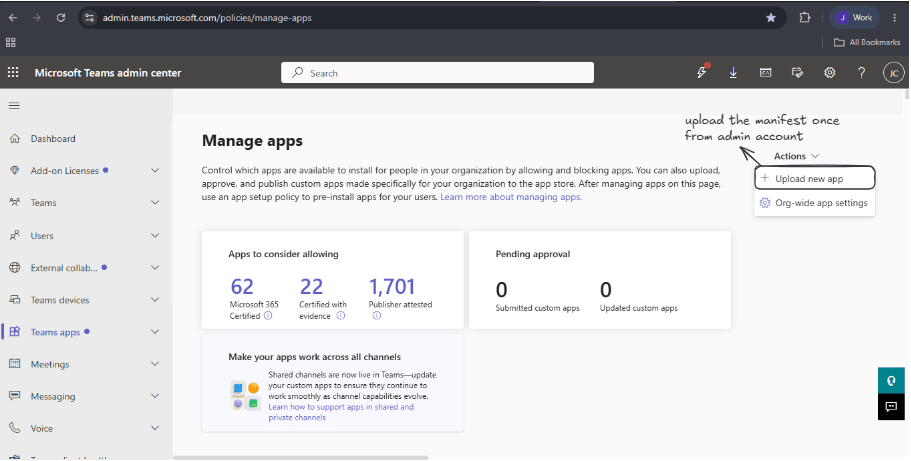
Upload the Terno Manifest to Teams Admin Center
To connect Microsoft Teams to Terno AI, an admin needs to upload the Terno app manifest once. Go to the Microsoft Teams Admin Center → Manage apps , and click Upload new app to register Terno for your organisation.
Step 2 of 6
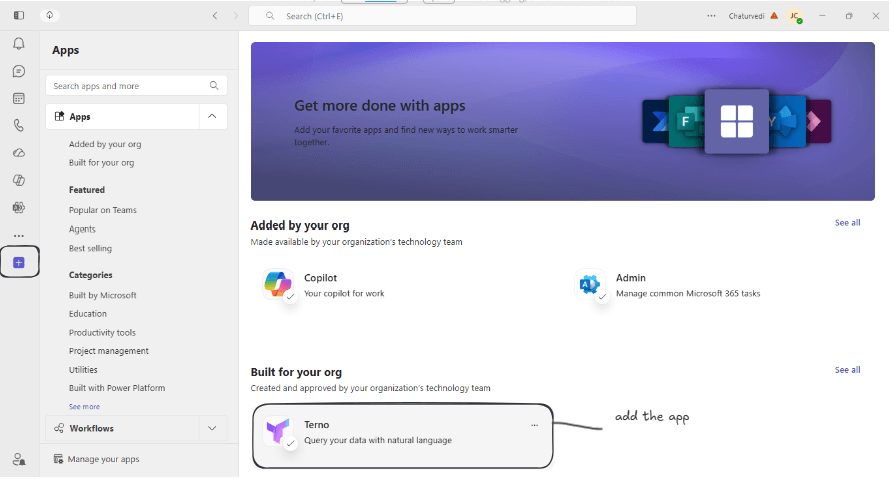
Add Terno from the Teams App Store
Once the manifest is uploaded, open Microsoft Teams and go to Apps. Under Built for your org, find Terno and click Add to install it for your workspace.
Step 3 of 6
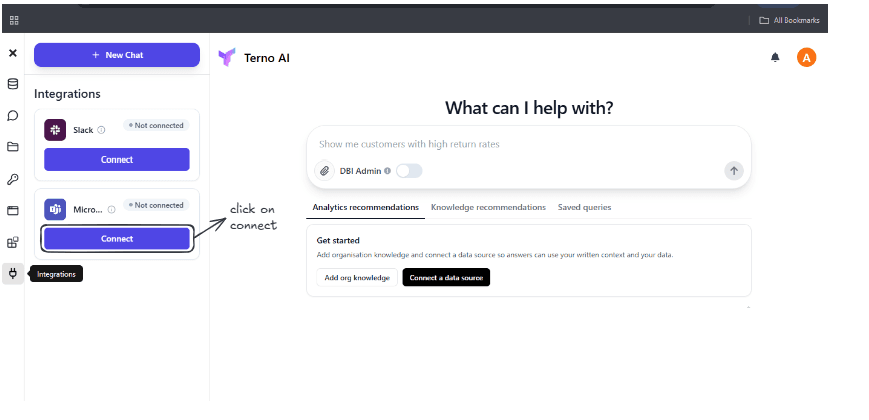
Click Connect from the Integrations Panel
Back in Terno AI, open the Integrations panel in the sidebar. Find the Microsoft Teams card and click Connect to start linking your account.
Step 4 of 6
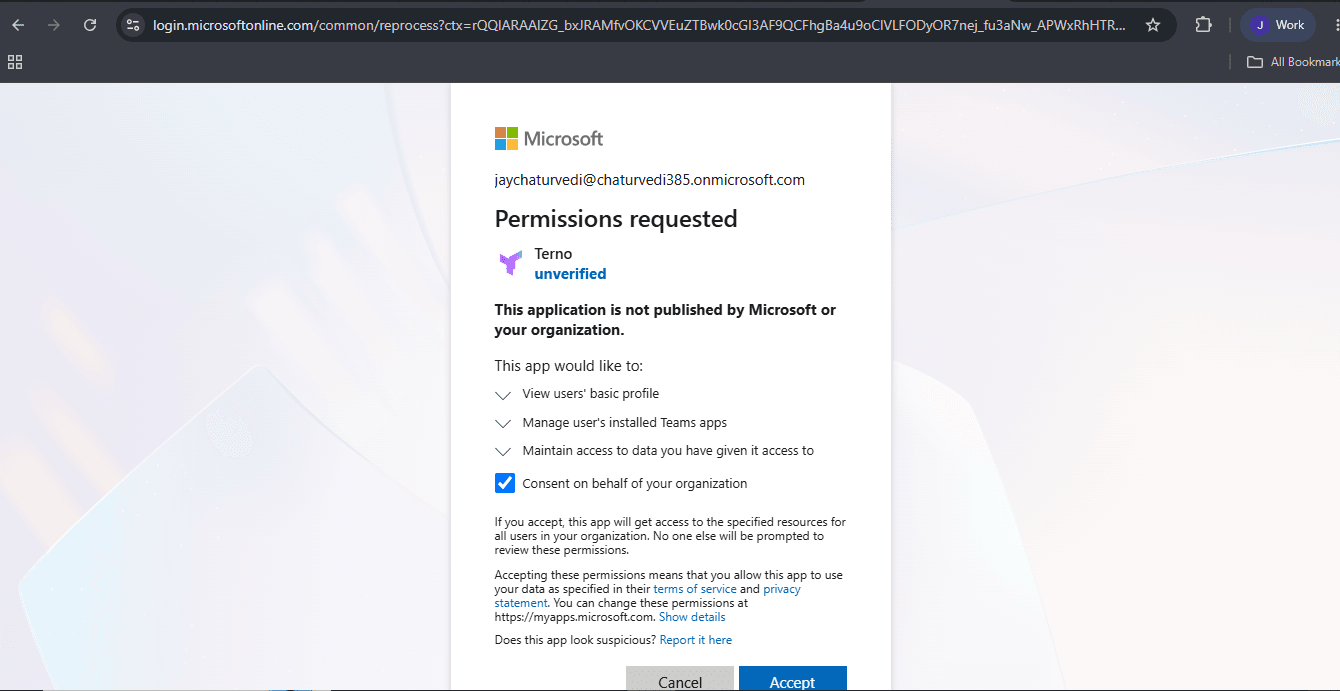
Authorize Terno to Complete the Connection
Clicking the link opens Microsoft's permissions screen. Review the access Terno AI is requesting and click Accept to complete the connection, just like the Slack authorization step.
Step 5 of 6
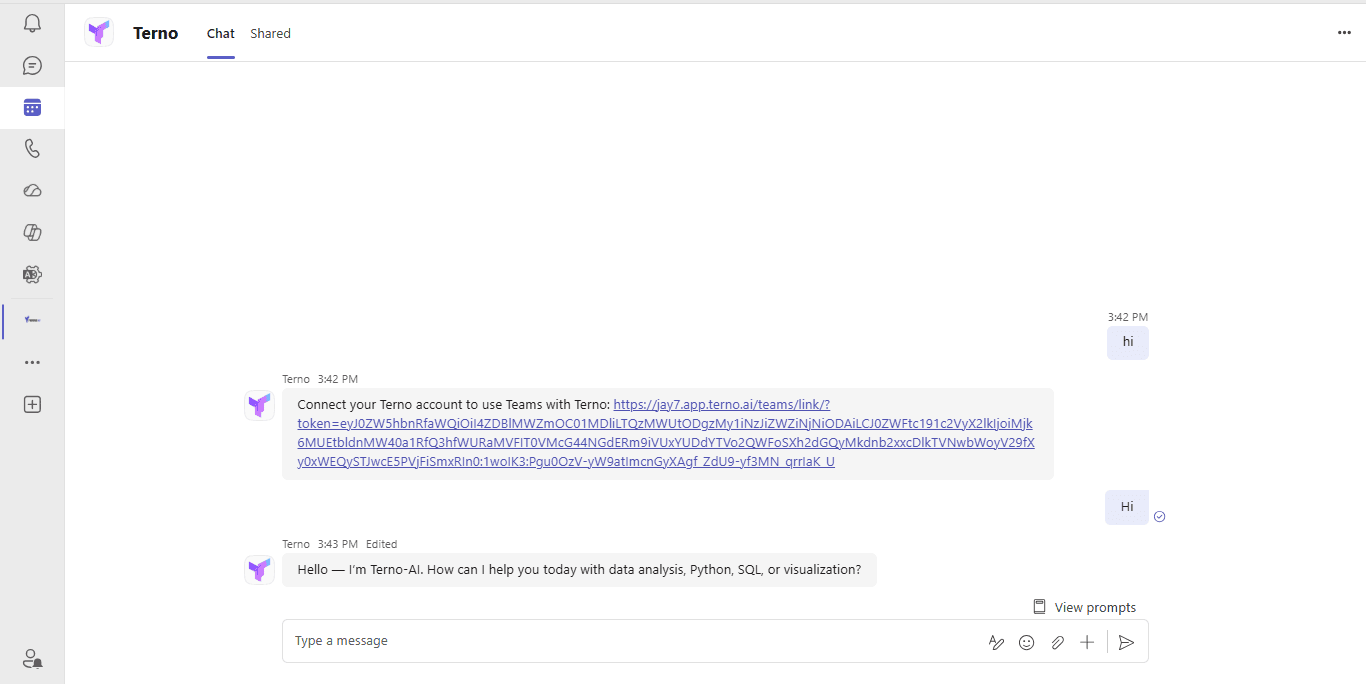
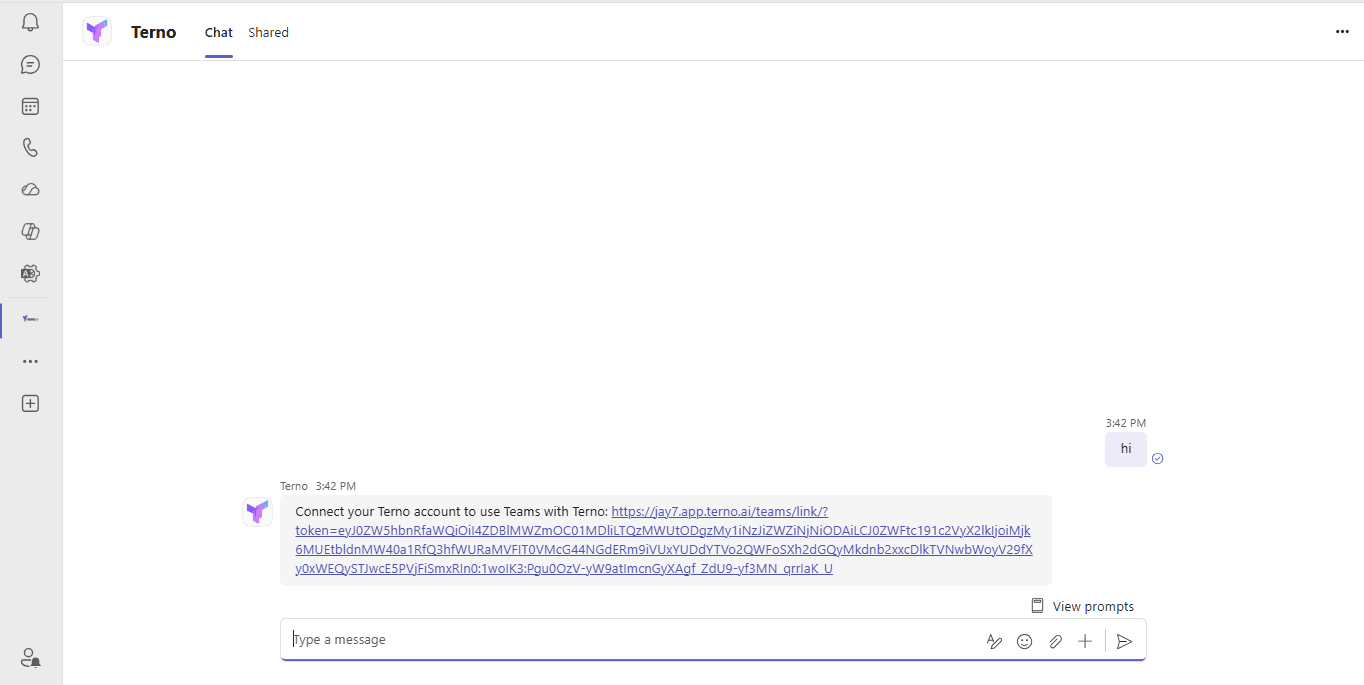
Message Terno in Teams to Get Your Connection Link
Open the Terno app inside Microsoft Teams and send any message, such as "hi." Terno replies with a secure link to connect your Teams account to your Terno AI organisation.
Step 6 of 6
Start Querying Your Data in Microsoft Teams
With the connection complete, message Terno directly in Teams to ask natural language questions about your data. Terno replies right in the same chat, so your team can query databases and review results without leaving Teams.