Unlock Insights Instantly: BigQuery + **Terno AI **
Managing and analyzing massive datasets is no longer a developer-only job. With **Terno AI’s seamless BigQuery integration**, you can now connect, query, and visualize enterprise-scale data — all through an intuitive, no-code interface.** What This Integration Does**
Terno AI directly connects with your Google BigQuery warehouse. You can:
Generate instant dashboards for sales, inventory, or customer analytics.
Import live datasets in seconds — no manual CSV uploads needed.
Run intelligent, AI-assisted queries without writing SQL.
Detect anomalies, predict demand, or segment customers using Terno’s built-in AI models.
Locate a Public Dataset in BigQuery
Before connecting BigQuery to Terno AI, let’s start with a dataset to explore. If you already have your own project data in BigQuery, you can skip this step. However, if you’re new to BigQuery or just want to experiment, Google provides hundreds of public datasets from e-commerce to weather to healthcare that anyone can query for free. Here’s how to find them:
- Open the BigQuery Console: https://console.cloud.google.com/bigquery .
- In the left navigation pane, click “Add Data” → “Explore Public Datasets.”
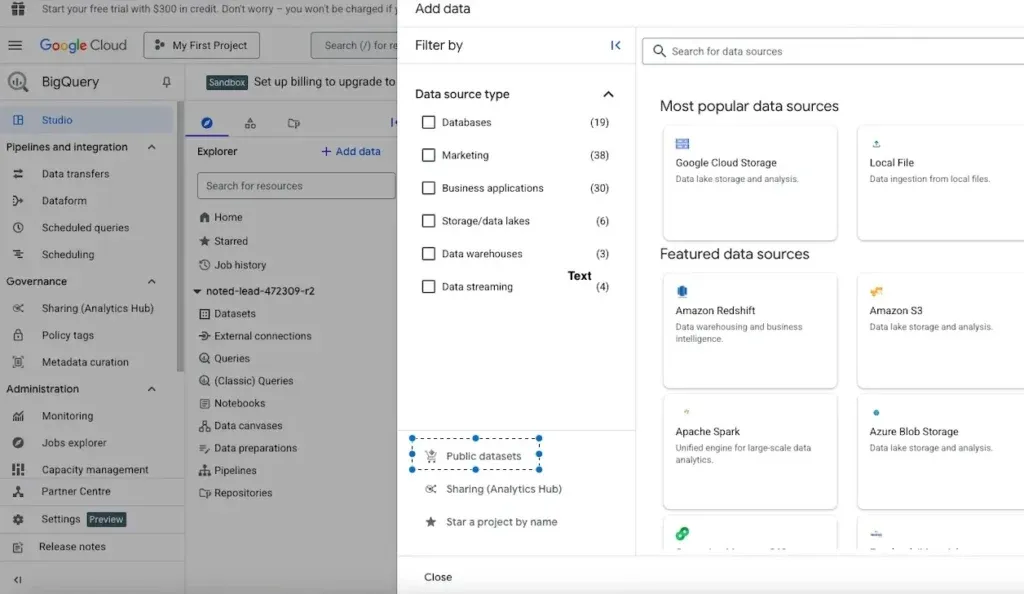
- You will see Google’s dataset marketplace. Click on the ‘Public datasets’ and search for something relevant, like “ecommerce,” “retail,” or “sales.”
- For our tutorial, let’s use bigquery-public-data.thelook_ecommerce—a simulated online retail dataset that includes orders, products, inventory, and customer demographics.
- Click “View Dataset” → “Open in Explorer” to preview the tables. You’ll now see sample data you can query right away.
Create a Service Account & JSON Key for Access
To let Terno AI or any other app access this dataset, you’ll need a service account with appropriate permissions, plus a JSON credentials file.
Step A: Create a Service Account
In the Google Cloud console, go to IAM & Admin → Service Accounts. Click to know more -> docs.aws.amazon.com/dms/latest/sbs/bigquery-redshift-migration-step-1.html.
Click Create Service Account.
Give it a name of your choice (e.g. terno_scratch)
Optionally add description
Assign it roles/permissions. For your use case, roles like BigQuery Data Viewer, BigQuery Job User, or BigQuery Admin are common.
Continue until the service account is created.
Step B: Generate JSON Key
In the Service Account detail page, go to Keys tab.
Click Add Key → Create new key. Choose JSON format.
Click here for more details -> https://cloud.google.com/iam/docs/keys-create-delete
Google will download the JSON file (e.g. service-account-xxxx.json) — store it securely.
Note: If you lose the JSON file, you cannot re-download it. You can generate a new key and deactivate the old one.
Steps to Integrate BigQuery with Terno AI
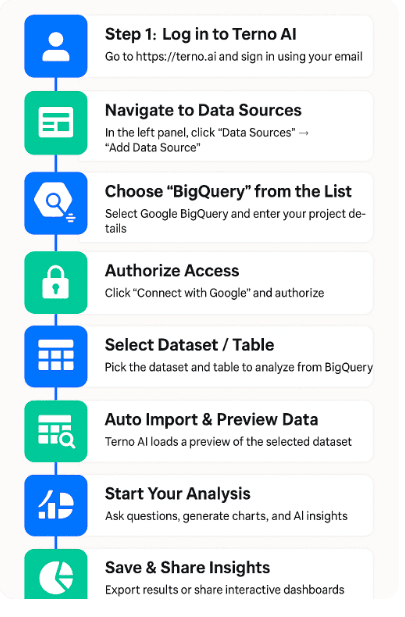
Terno gives you two easy ways to connect your BigQuery data — choose whichever suits your
workflow best:
From the Admin Panel (Recommended for setup and management) — Add and
manage multiple sources from your workspace sidebar.From the Chat Interface (Recommended for quick analysis) — Add your data source
while starting a new chat.
Below are detailed steps for both methods
Method 1: Add Data Source via Admin Panel
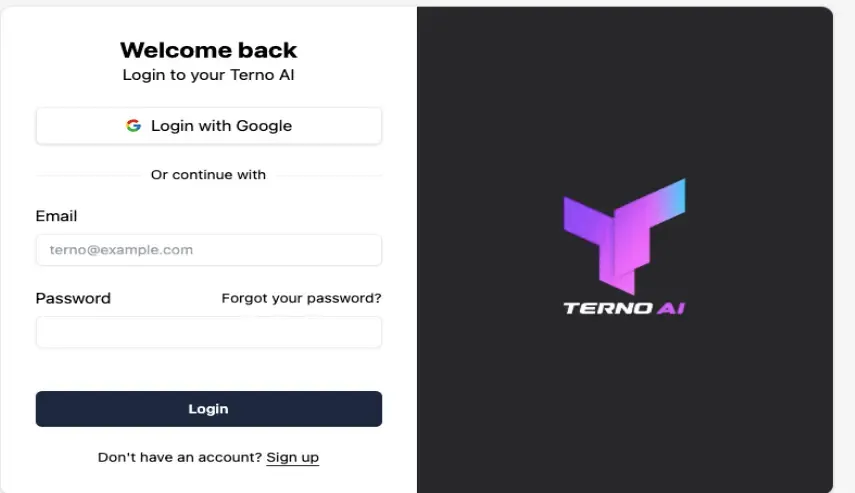
Step 1: Log in to Terno AI
Go to https://terno.ai and sign in using your registered email ID.
Once inside, you’ll land on your Terno Workspace where all your datasets and analyses live.
Step 2: Navigate to Data Sources
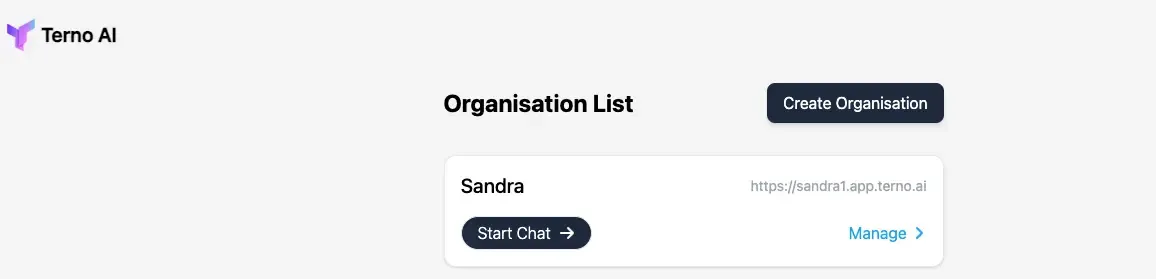
In the panel, click on “Manage”
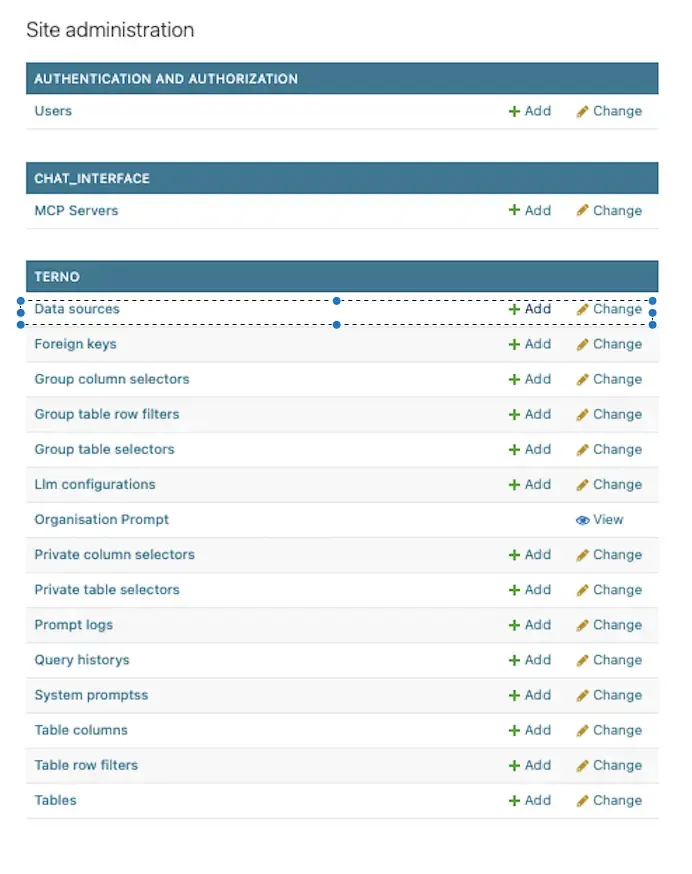
Next, under Terno navigate to “ Data Sources – > Add"
Then, Add Data Source page will open.
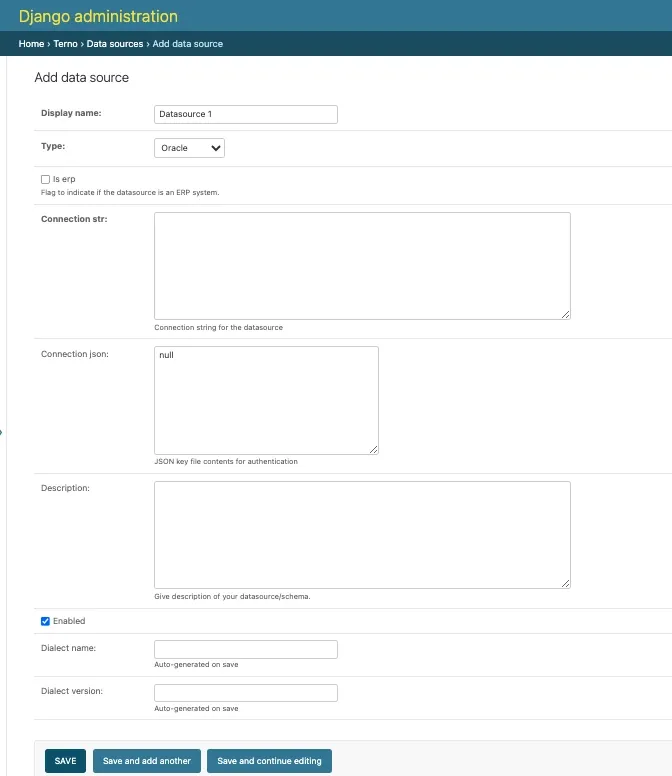
This is where you can connect cloud data platforms like Oracle, BigQuery, Snowflake, etc.
Step 3: Enter your project details
Terno will prompt you to enter your BigQuery project details
Enter Display Name
In the Display Name field, type a recognizable name for your connection e.g., _thelook_ecommerce _.
This name helps you identify your connection later when multiple sources are added.
Choose Type: “BigQuery”In the Type dropdown, select BigQuery.
This tells Terno that you’re connecting to a Google BigQuery data warehouse.
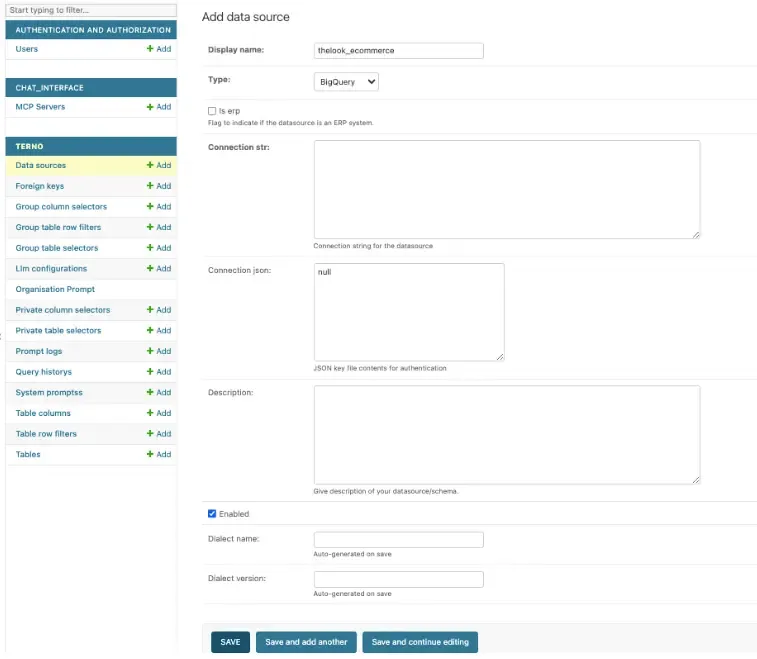
** Step 4: Add Connection URL**
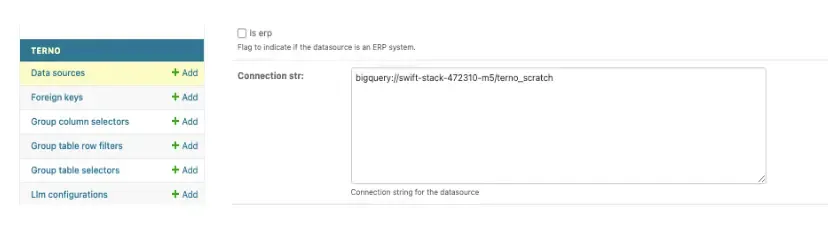
Paste your BigQuery connection URL in the connection str:
Example format:
bigquery://project_id.dataset_name.table_name
This defines which BigQuery dataset Terno will access.
Step 5: Enter Connection JSON
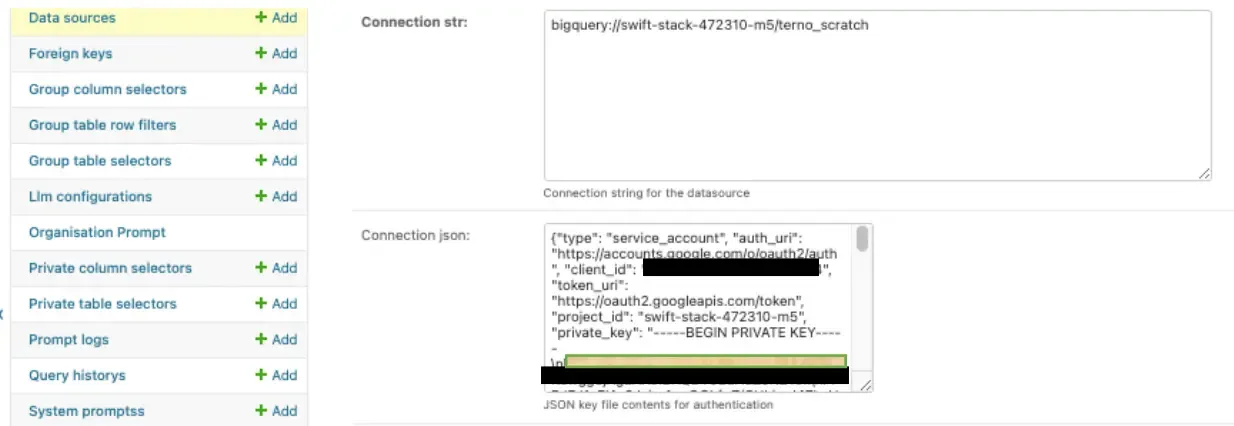
Copy your BigQuery service account credentials JSON file content and paste it into this field.
This file is generated in your Google Cloud Console when you create a service account for BigQuery access.
Make sure to include the entire JSON structure — it contains keys like:
{
"type": "service_account",
"project_id": "your-project-id",
"private_key_id": "xxxxxx",
"private_key": "—–BEGIN PRIVATE KEY—–",
"client_email": "service-account@project-id.iam.gserviceaccount.com"
}
Add Description (Optional)
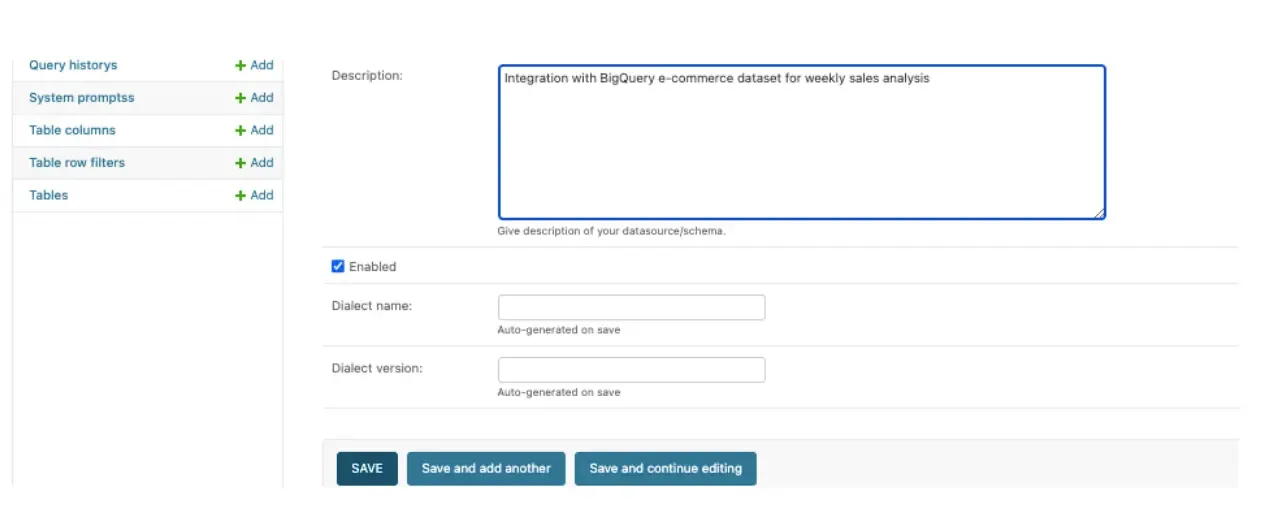
You can write a short note like:
“Integration with BigQuery e-commerce dataset for weekly sales analysis.”
Helpful for documentation if you manage multiple connections.
Step 6: Enable the Connection
- Ensure the “Enabled” checkbox is ticked so Terno can actively use this data source.
** Step 7: Save Your Configuration**
Click “Save” or “Save and Continue Editing” once all details are filled.
Terno AI will validate your credentials and establish a secure connection with BigQuery.
Verification Step
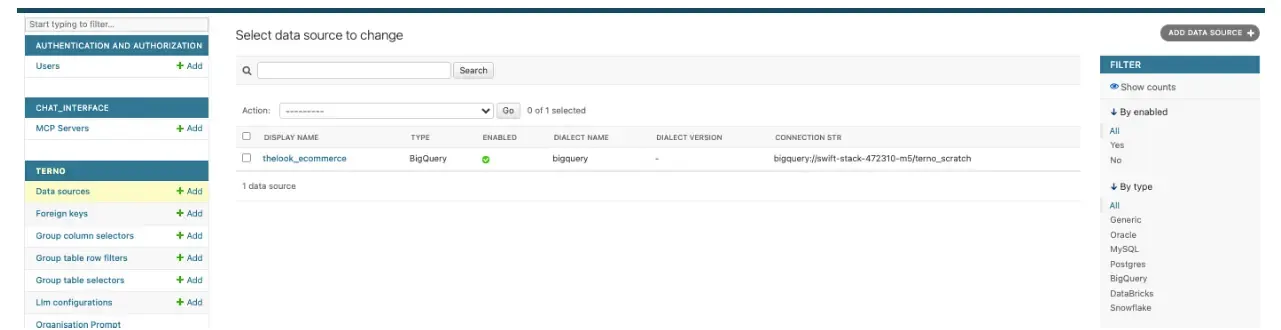
After saving, go to Data Sources → Manage Sources.
Your BigQuery connection should appear as **Enabled **.
You can now select this source to start your analysis.
You’re Connected!
You’ve successfully linked BigQuery with Terno AI.
Now you can:
Explore datasets instantly without writing SQL.
Create visualizations and AI-driven insights.
Detect sales anomalies, demand shifts, or customer trends — right from the Terno dashboard.
Select Dataset / Table in the Terno AI dashboard
Once connected in the Terno AI dashboard, start a new chat and browse your available datasets.
Pick the one you want to analyze — for example:
bigquery-public-data.thelook_ecommerce.orders
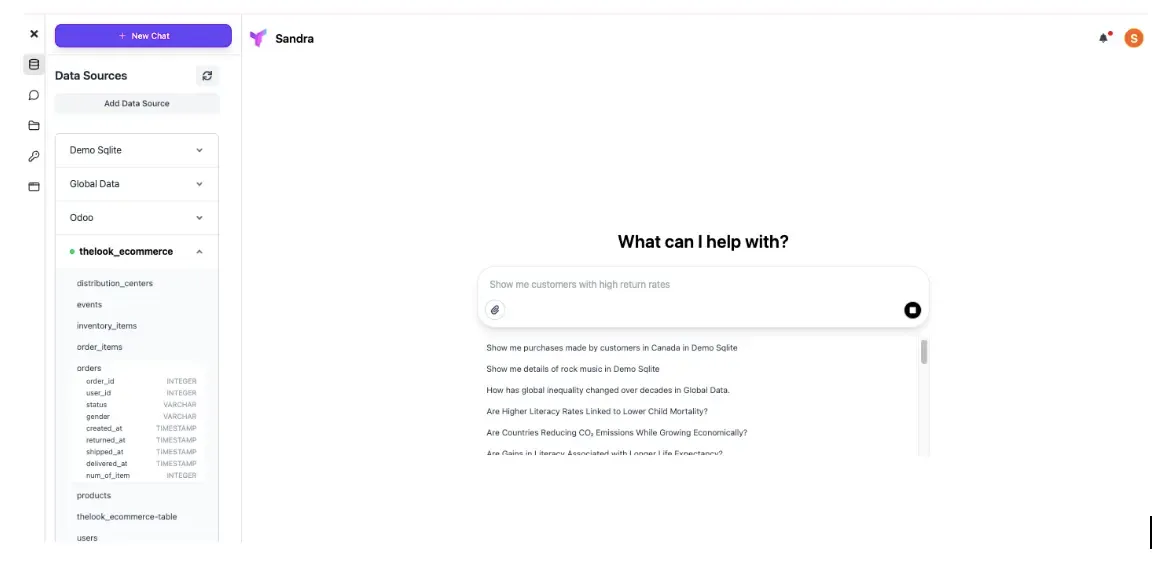
Method 2: Add Data Source from Chat Interface
This is the easiest and most direct way to connect your BigQuery dataset, right from the chat screen.
- From the Terno home screen, click Start Chat
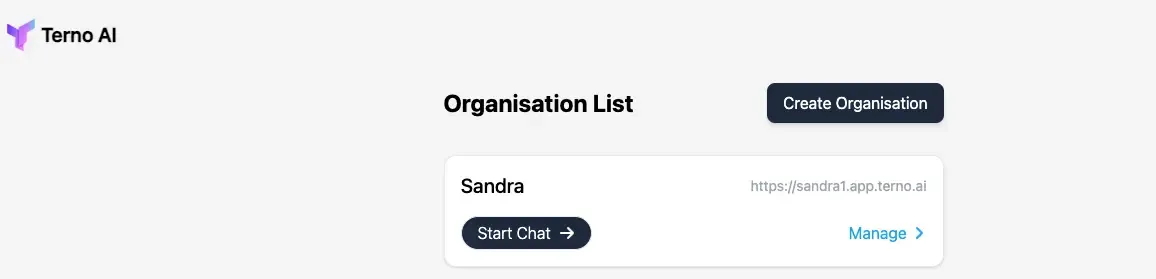
You will be navigated to the Chat Page, as shown below.
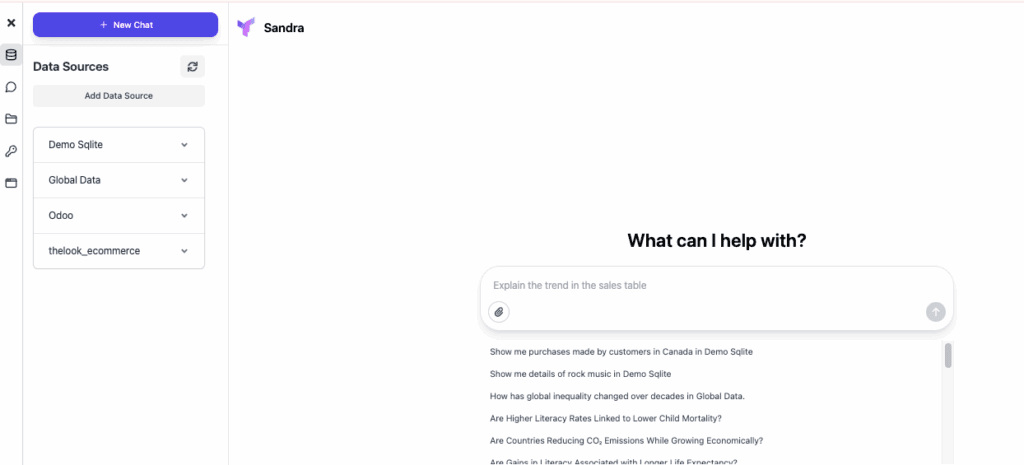
- On the Chat Page, you can view a list of your Data Sources on the left panel — such as Demo SQLite, Global Data, and Odoo. Click the “Add Data Source” button.
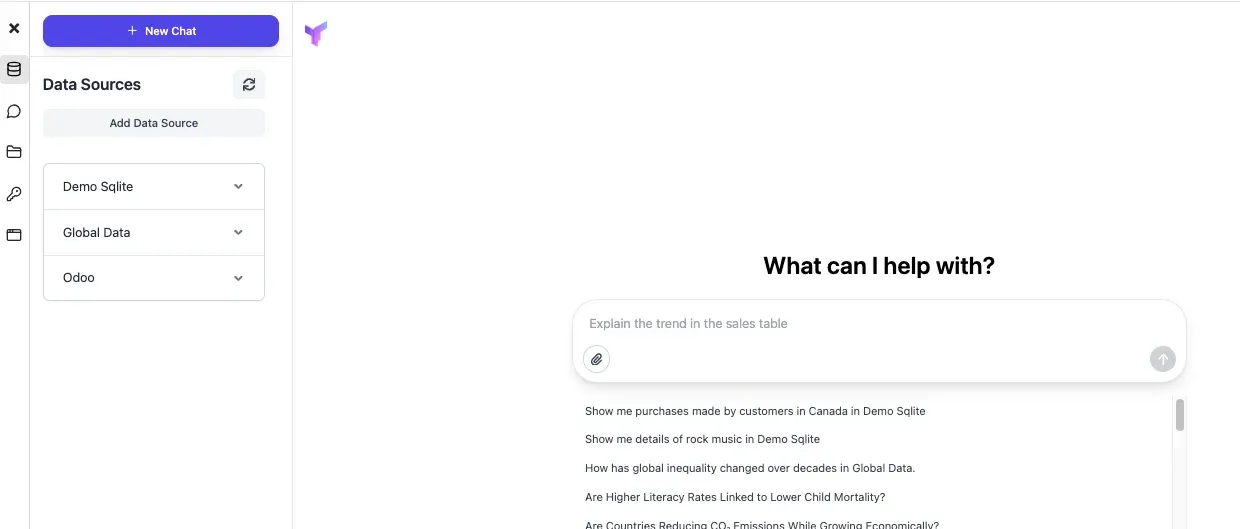
You will see a prompt to select or add a data source directly within the chat window.
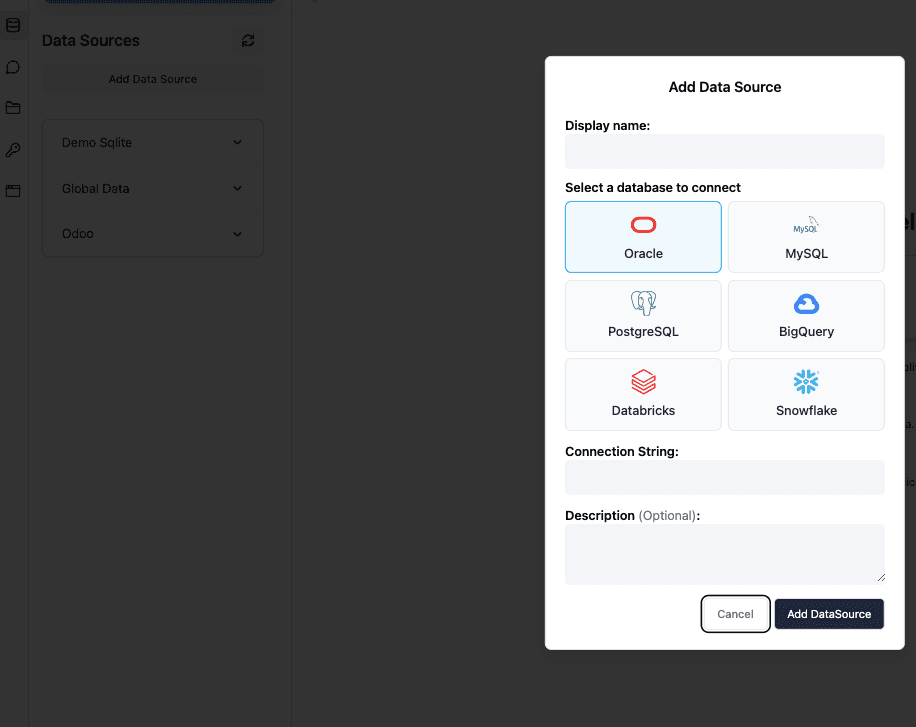
- Choose “BigQuery”
Select BigQuery from the list of available data platforms.
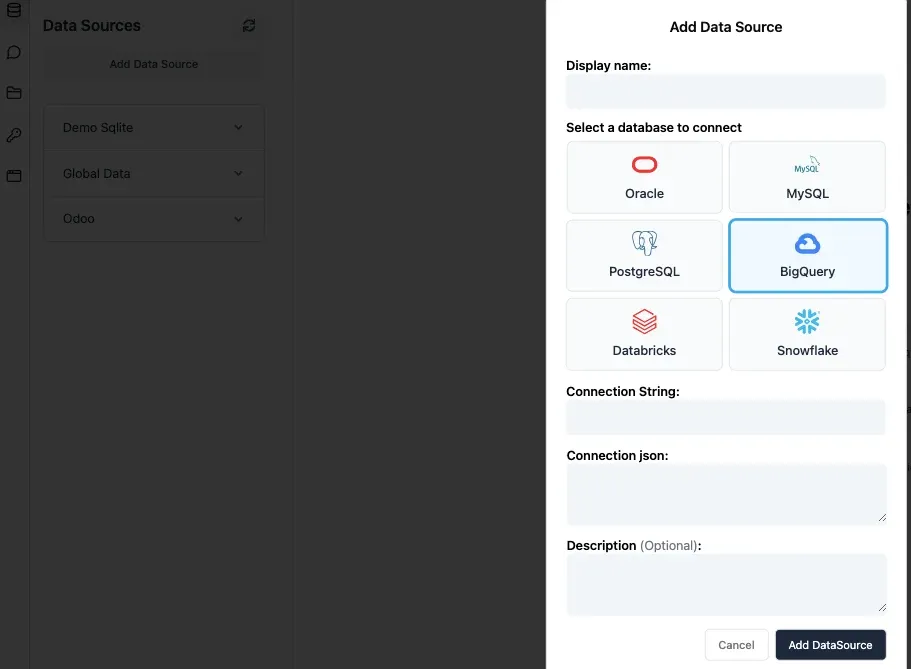
- Enter Connection Detail
Paste your BigQuery connection URL (e.g. bigquery://project_id.dataset_name.table_name
Paste your Service Account JSON credentials (from your Google Cloud Console).
Optionally, add a short description (e.g. Integration with BigQuery e-commerce dataset for weekly sales analysis).
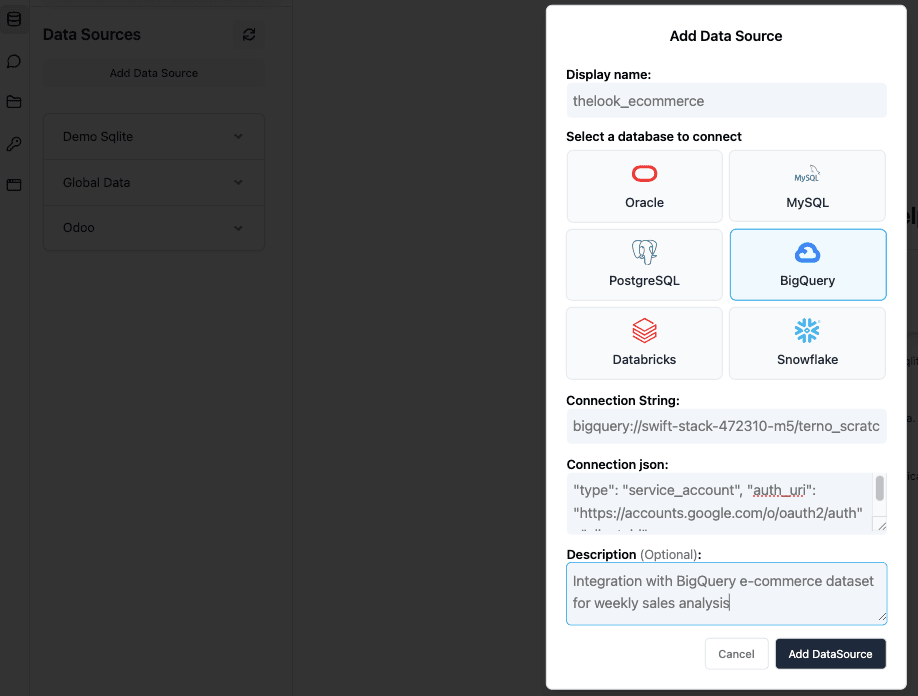
- Click Add DataSource
Terno validates the connection instantly and makes it available in your current chat session. The newly added data source will appear in the Data Sources list, along with any previously connected datasets.
Auto Import & Preview Data
Terno AI automatically loads the dataset preview.
Here you can view column names, data types, and sample rows — without writing SQL
Start Your Analysis
Now the real magic begins
Ask Terno questions in natural language (e.g., “Show weekly sales trends by category.”)
Generate charts, dashboards, and AI insights instantly.
Combine multiple tables or add filters interactively.
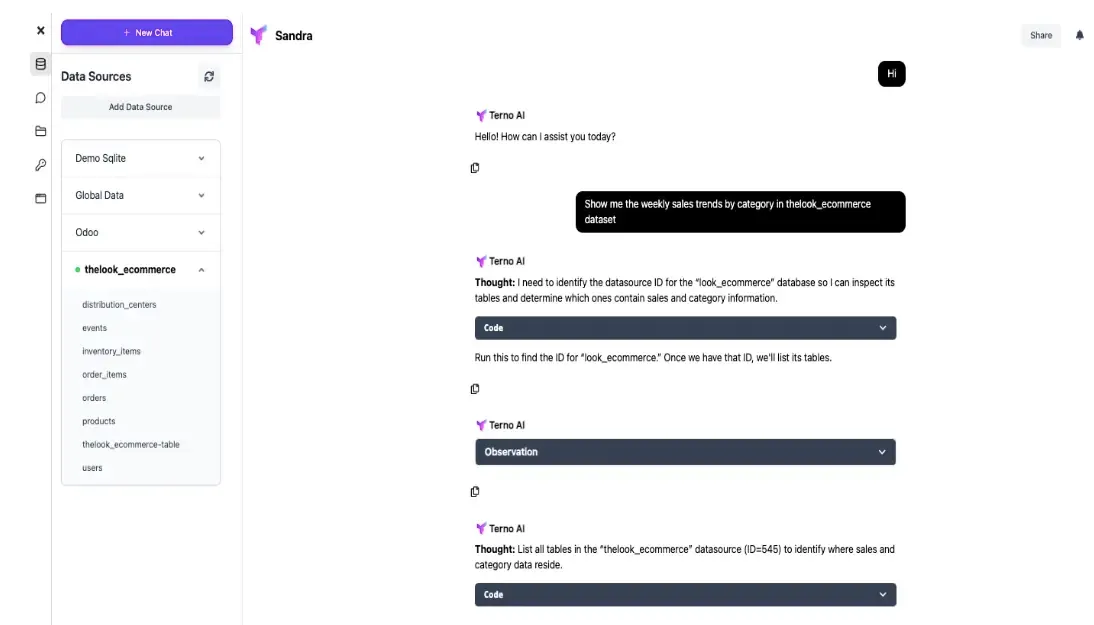
Save & Share Insights
Once your analysis is ready, you can:
Export results as CSV, Excel, or PNG.
Share interactive dashboards with teammates.
With Terno AI + BigQuery, your data stays in the cloud, and insights come to you — fast, visual, and secure.
Why It Matters
Traditional analytics workflows often involve complex SQL, ETL pipelines, or data engineering overhead. Terno removes all of that friction. By combining BigQuery’s scale with Terno’s no-code AI power, you get insights in minutes — not weeks.
** Example Use Case**
Identify top-selling products across weekdays vs weekends.
Detect sudden sales dips or anomalies.
Suggest restocking or pricing strategies.
** Who Benefits**
Data Analysts: Automate repetitive querying and visualization.
Retail Managers: Monitor daily performance without coding.
Executives: Make data-driven decisions faster with clear AI visuals.
The Future of Analytics
The Terno–BigQuery bridge turns raw cloud data into actionable intelligence, empowering every decision-maker to explore, predict, and plan confidently.
Ready to experience it?
Book a demo with Terno AI and watch how effortless BigQuery analytics can be. Interested to see how thelook_ecommerce BigQuery dataset reveals the real shopping behavior using Terno AI ?
Dive into our full analysis → Weekday or Weekend: When Do Shoppers Really Click “Buy”?

10 September 2026
Designing CertusAI: A Compliance-First Enterprise LLM Platform for Regulated Industries
As enterprise adoption pivots from raw model parameter scale to verifiable trust, CertusAI introduces a compliance-first LLM architecture engineered specifically for highly regulated industries. By integrating real-time PII redaction, deterministic policy enforcement, and cryptographically signed audit chains directly into the inference pipeline, CertusAI unlocks agentic AI productivity while ensuring total data sovereignty and statutory compliance.
10 September 2026
E-Commerce Return Intelligence: Analyzing Return Drivers and Predicting Purchase-Time Return
Addressing reverse-logistics friction and return-rate costs in fashion e-commerce, this study leverages the 1.37M-record ASOS GraphReturns dataset to evaluate product, pricing, and country-level return drivers. Using Terno AI for structured analysis alongside a deployed Logistic Regression baseline, the platform provides purchase-time risk scoring to power relative risk ranking, operational prioritization, and non-punitive intervention pilots.
10 September 2026
Global Food Loss Intelligence: Strategic Screening & Decision Framework
An executive decision-support whitepaper translating the official FAO Food Loss Index (SDG Indicator 12.3.1a) into actionable intelligence for 2021–2023. This study establishes a data-driven monitoring baseline across major commodity groups, identifying Fruits & Vegetables (3-year mean index of 109.65) as the primary priority for diagnostic follow-up while offering structured strategies for public policy, industry benchmarking, and evidence-based resource allocation.