
Salesforce
Connect Salesforce to Terno AI to analyse opportunities, leads, accounts, contacts, cases, campaigns, and custom objects.
Connect a Salesforce org and ask about your pipeline, leads, accounts, and support cases in plain English.
Before you start
Section titled “Before you start”- A Salesforce user with API Enabled permission and read access to the objects you want to analyse.
- Your org’s My Domain, if it blocks sign-in at login.salesforce.com.
- Admin rights in your Terno workspace.
Connect Salesforce
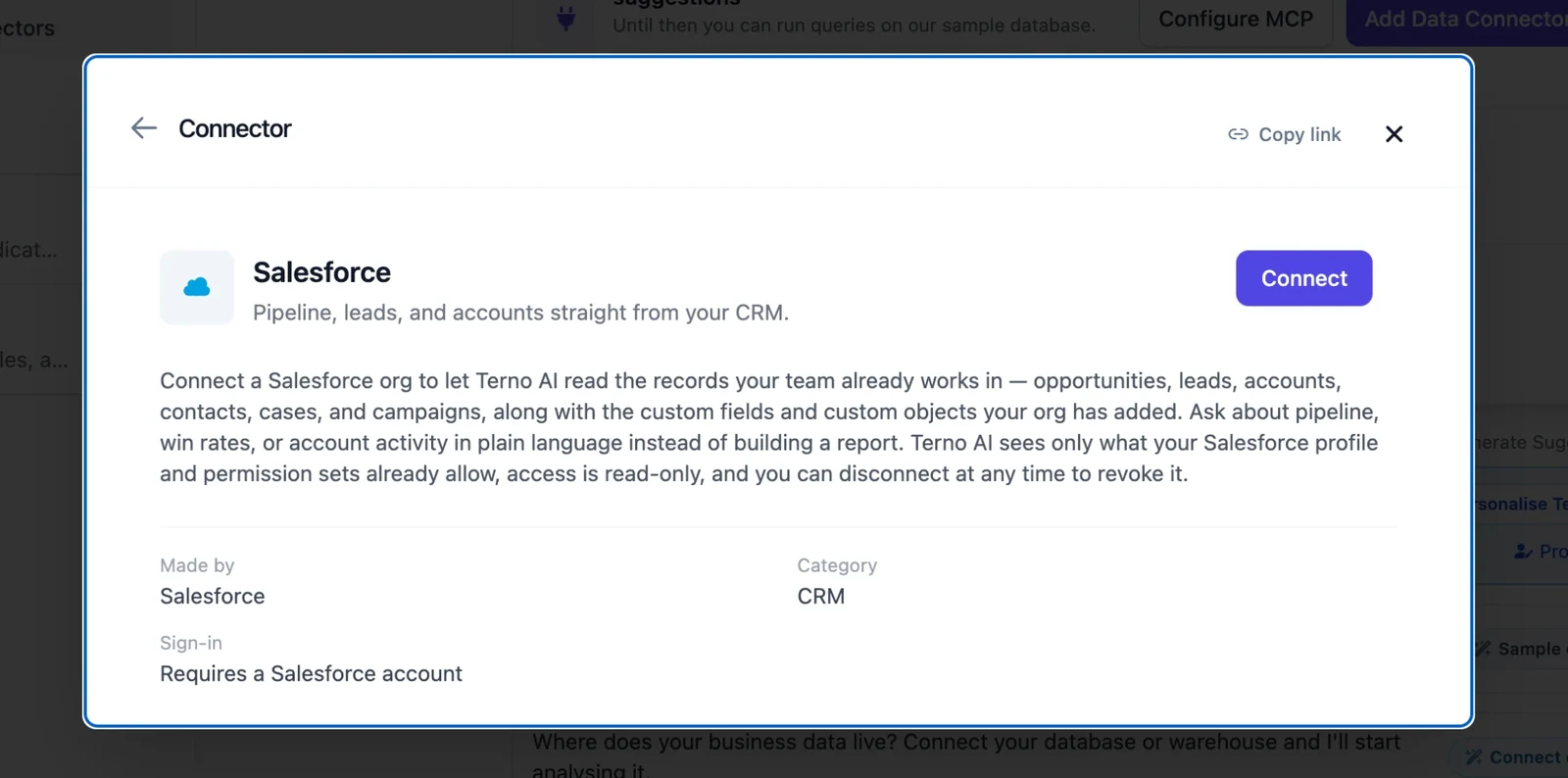
Section titled “Connect Salesforce”- Click Add Data Connectors, open the Connectors tab, choose Salesforce, and click Connect.
- In the Connect Salesforce dialog:
- Most orgs can just click Grant access.
- If your org doesn’t allow sign-in at login.salesforce.com, tick Sign in using a custom domain (advanced users only) and enter your My Domain, such as
https://acme.my.salesforce.com.
- Sign in to Salesforce and approve access.
- You’re returned to Terno, which shows Connected to Salesforce.
Terno asks for API access (api), a refresh token so it can stay connected, and your basic identity (openid, email). It only reads data.
One connection covers one Salesforce org. Sandboxes and other orgs need their own connection.
What you can analyse
Section titled “What you can analyse”| Report | What’s in it |
|---|---|
| Opportunities | Pipeline, stages, amounts, owners, and close dates. Dated by Close Date by default. |
| Leads | Leads by source, status, and owner. |
| Accounts | Companies and their details. |
| Contacts | People and the accounts they belong to. |
| Cases | Support cases by status, priority, and owner. |
| Campaigns | Marketing campaigns and their results. |
| Custom objects | Any custom object, such as Project__c. |
Every report can be filtered by any date field. By default, Terno uses Created Date (Close Date for opportunities).
Try asking:
- “Open pipeline by stage and owner for this quarter.”
- “Win rate by lead source over the last 12 months.”
- “New leads per week by source.”
- “Open high-priority cases older than 7 days.”
- “Count Project__c records by status.”
Troubleshooting
Section titled “Troubleshooting””Custom domain must be your org’s My Domain”
Enter your My Domain, such as acme.my.salesforce.com. Find it in Salesforce Setup → My Domain.
”Salesforce daily API request limit reached”
Your Salesforce org has used up its own daily API allowance, which all integrations share. Try again after it resets, or ask your Salesforce admin about the limit.
Some objects or fields are missing
Terno sees what your Salesforce user can see. Check the user’s profile and permission sets for read access to those objects and fields.
”Reconnect the source” or the connection has expired
The sign-in was revoked or expired. An admin opens the connector and clicks Manage → Reconnect. Reconnecting keeps your account selections and chat history.
”Not permitted to query account(s)”
The account is set to No access, or an admin limited your group to other accounts. Ask an admin to check Account selection and Access control.
”Too many requests” or “Daily quota … is exhausted”
Terno limits how often each workspace calls each app, to stay within the app’s own limits. Wait a moment and try again. Daily quotas reset at 00:00 UTC. See Limits.
Security
Section titled “Security”- You sign in on Salesforce’s own page. Terno never sees your password.
- Tokens are encrypted at rest and refreshed automatically when the app allows it.
- Read-only: Terno can’t create, change, or delete records.
- Only workspace admins can connect, reconnect, or disconnect. Everyone in the workspace can ask questions about the accounts that are switched on.
Disconnect
Section titled “Disconnect”Open the connector and click Manage → Disconnect. Terno deletes its stored tokens and can no longer fetch new data. Your account selections, notes, and earlier chats are kept, so reconnecting later picks up where you left off. Nothing changes in your Salesforce account.
To also remove Terno’s access on the Salesforce side, revoke it in your Salesforce account settings.