YouTube
Connect YouTube to Terno AI to analyse channel and video performance, audience, traffic sources, and revenue.
Connect your YouTube channels and ask about views, watch time, subscribers, audience, and revenue.
Before you start
Section titled “Before you start”- The Google account that owns or manages the YouTube channel.
- Admin rights in your Terno workspace.
Connect YouTube
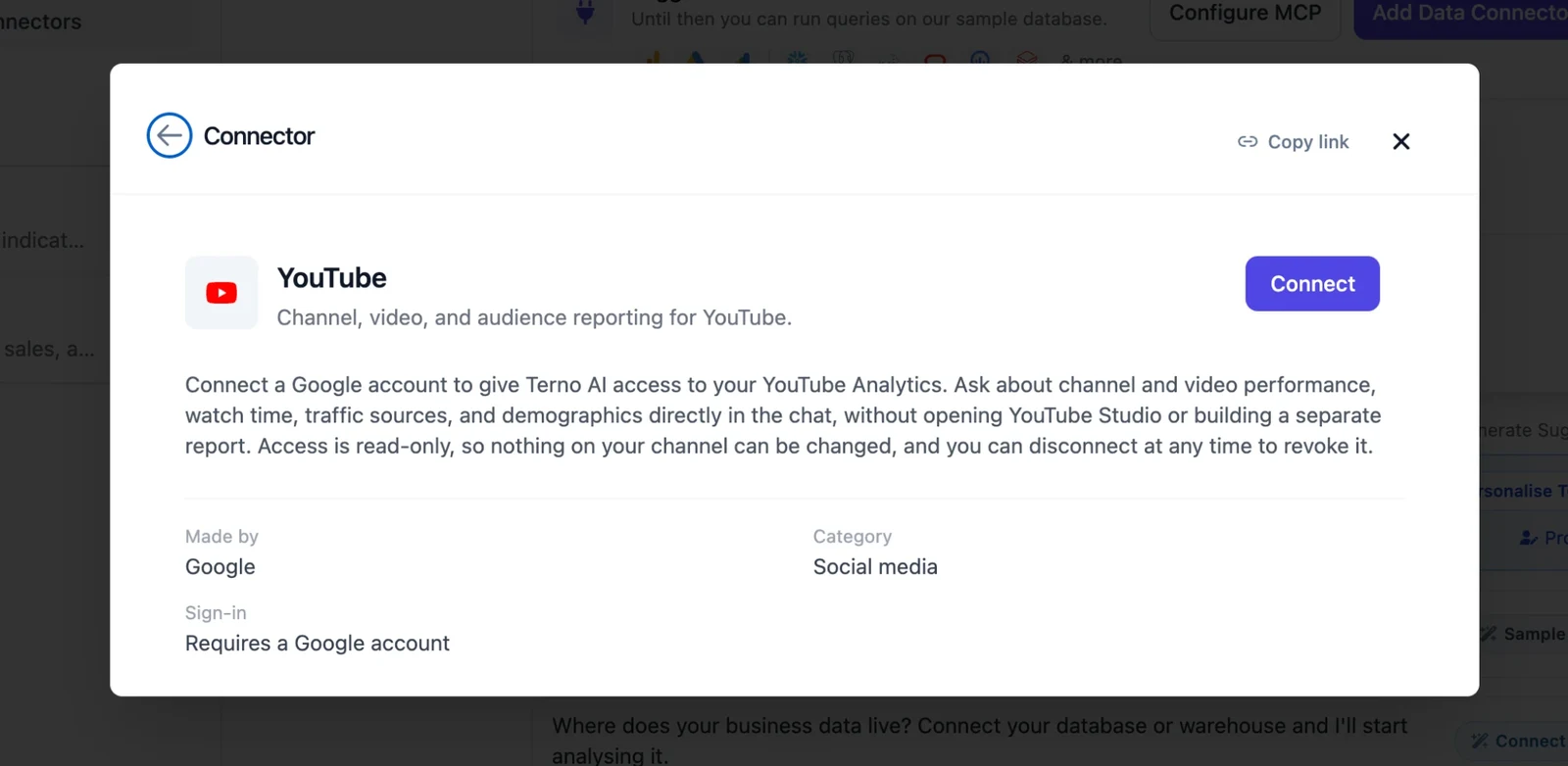
Section titled “Connect YouTube”- Click Add Data Connectors, open the Connectors tab, and choose YouTube.
- Read the details card, then click Connect.
- Sign in with your Google account and approve the permissions.
- You’re returned to Terno, which shows Connected to YouTube.
Next, Google asks you to choose the account to sign in with:
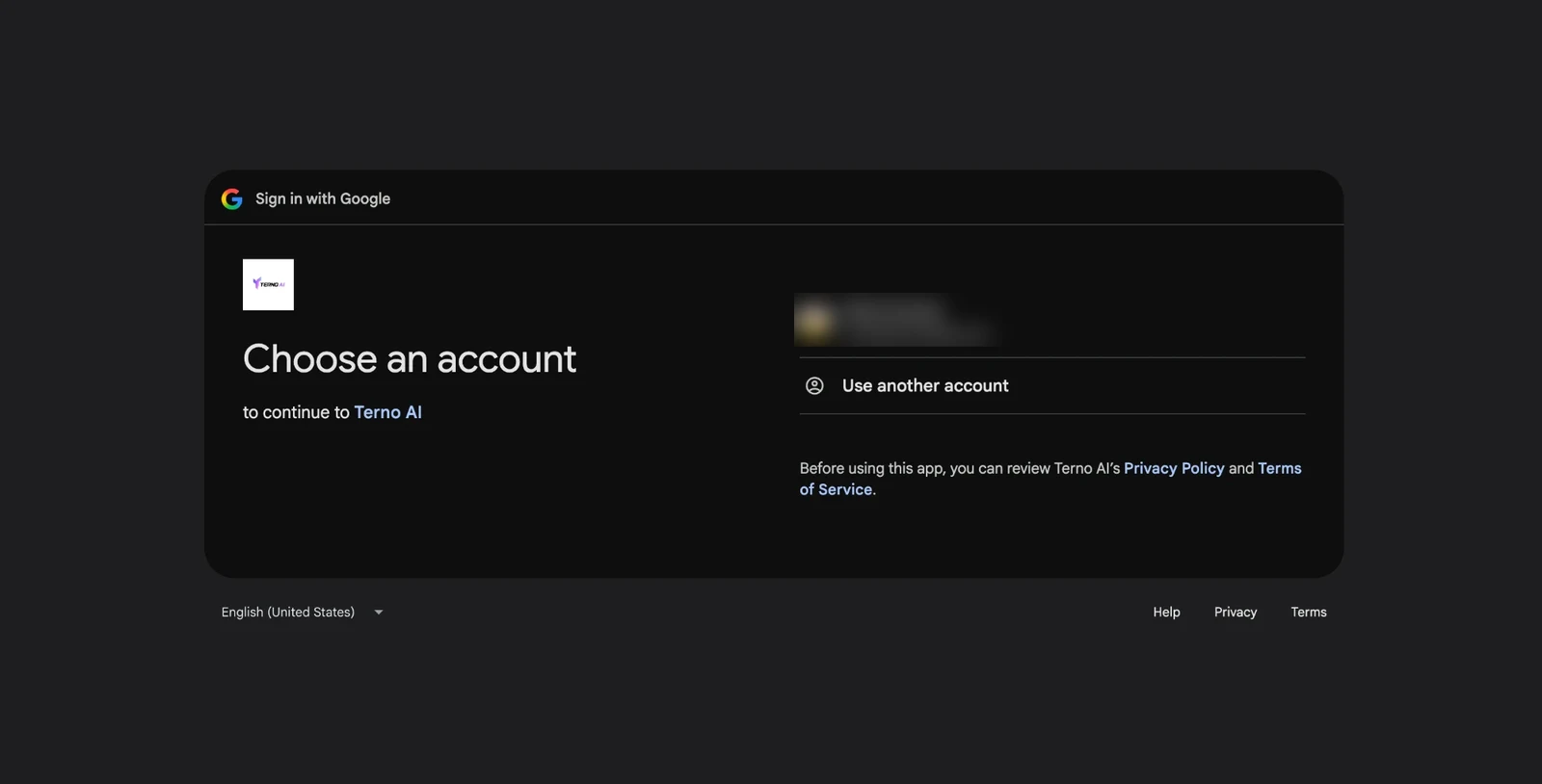
Terno asks for read-only access to your YouTube account and YouTube Analytics, including revenue reports (youtube.readonly, yt-analytics.readonly, yt-analytics-monetary.readonly).
Choose accounts
Section titled “Choose accounts”Right after you sign in, Terno lists the channels your login can see, and switches them all on. Set each one to:
- Read: Terno can query it.
- No access: Terno never queries it.
Use Set all to Read or Set all to No access to change them in one go. Change this later from Manage → Account selection on the connector.
What you can analyse
Section titled “What you can analyse”| Report | What’s in it |
|---|---|
| Channel totals | Views, watch time, subscribers gained and lost, likes, and comments for the channel. |
| Latest videos | Your most recent uploads. |
| Video totals | Metrics for one video. |
| Geography | Views and watch time by country. |
| Demographics | Viewer age and gender. |
| Devices | Views by device type and operating system. |
| Traffic sources | Where viewers found your videos, such as search, suggested videos, or external sites. |
| Revenue | Estimated revenue and ad performance. Only for monetized channels. |
Try asking:
- “Views and watch time per week for the last 3 months.”
- “Which of my latest videos got the most subscribers?”
- “Top countries by watch time this year.”
- “Where does my traffic come from?”
- “Estimated revenue by month.” (monetized channels)
Troubleshooting
Section titled “Troubleshooting”Revenue reports are empty
Revenue is only available for channels in the YouTube Partner Program. The account you connected also needs permission to see revenue for the channel.
”Reconnect the source” or the connection has expired
The sign-in was revoked or expired. An admin opens the connector and clicks Manage → Reconnect. Reconnecting keeps your account selections and chat history.
”Not permitted to query account(s)”
The account is set to No access, or an admin limited your group to other accounts. Ask an admin to check Account selection and Access control.
”Too many requests” or “Daily quota … is exhausted”
Terno limits how often each workspace calls each app, to stay within the app’s own limits. Wait a moment and try again. Daily quotas reset at 00:00 UTC. See Limits.
Security
Section titled “Security”- You sign in on Google’s own page. Terno never sees your password.
- Tokens are encrypted at rest and refreshed automatically when the app allows it.
- Read-only: Terno can’t upload, edit, or delete videos.
- Only workspace admins can connect, reconnect, or disconnect. Everyone in the workspace can ask questions about the accounts that are switched on.
Disconnect
Section titled “Disconnect”Open the connector and click Manage → Disconnect. Terno deletes its stored tokens and can no longer fetch new data. Your account selections, notes, and earlier chats are kept, so reconnecting later picks up where you left off. Nothing changes in your Google account.
To also remove Terno’s access on the Google side, revoke it in your Google account settings.