Connectors overview
Connect Terno AI to your databases, warehouses, and business apps, and ask questions about live data without exporting files.
What is a connector?
Section titled “What is a connector?”A connector links Terno to a place where your data lives. Once it’s connected, everyone in your workspace can ask questions about that data in plain English. Terno writes and runs the queries for you, so you never need to download, upload, or export files.
Terno has two kinds of connectors:
- Datasources: databases and data warehouses such as PostgreSQL or Snowflake. You connect them with a short form, and Terno queries them with read-only SQL.
- Connectors: business apps such as Google Ads or Shopify. You connect them by signing in with your account (OAuth), and Terno reads their reports through the app’s API.
Why use connectors
Section titled “Why use connectors”- Live data: every answer comes from your data as it is right now, not from last week’s export.
- No file juggling: skip downloading, uploading, and keeping spreadsheets in sync.
- One place for everything: ask questions that combine your database with your ad, analytics, CRM, and store data.
- Read-only by default: Terno can’t change your databases, and app connectors are read-only unless an admin explicitly allows changes (Google Ads only).
- Shared with your team: connect once, and everyone in the workspace can use it, within the permissions you set.
Where to find connectors
Section titled “Where to find connectors”Click Add Data Connectors on the home screen, or in the sidebar’s Data Connectors panel. You can also use + → Add datasources or + → Add Connectors in the question box.
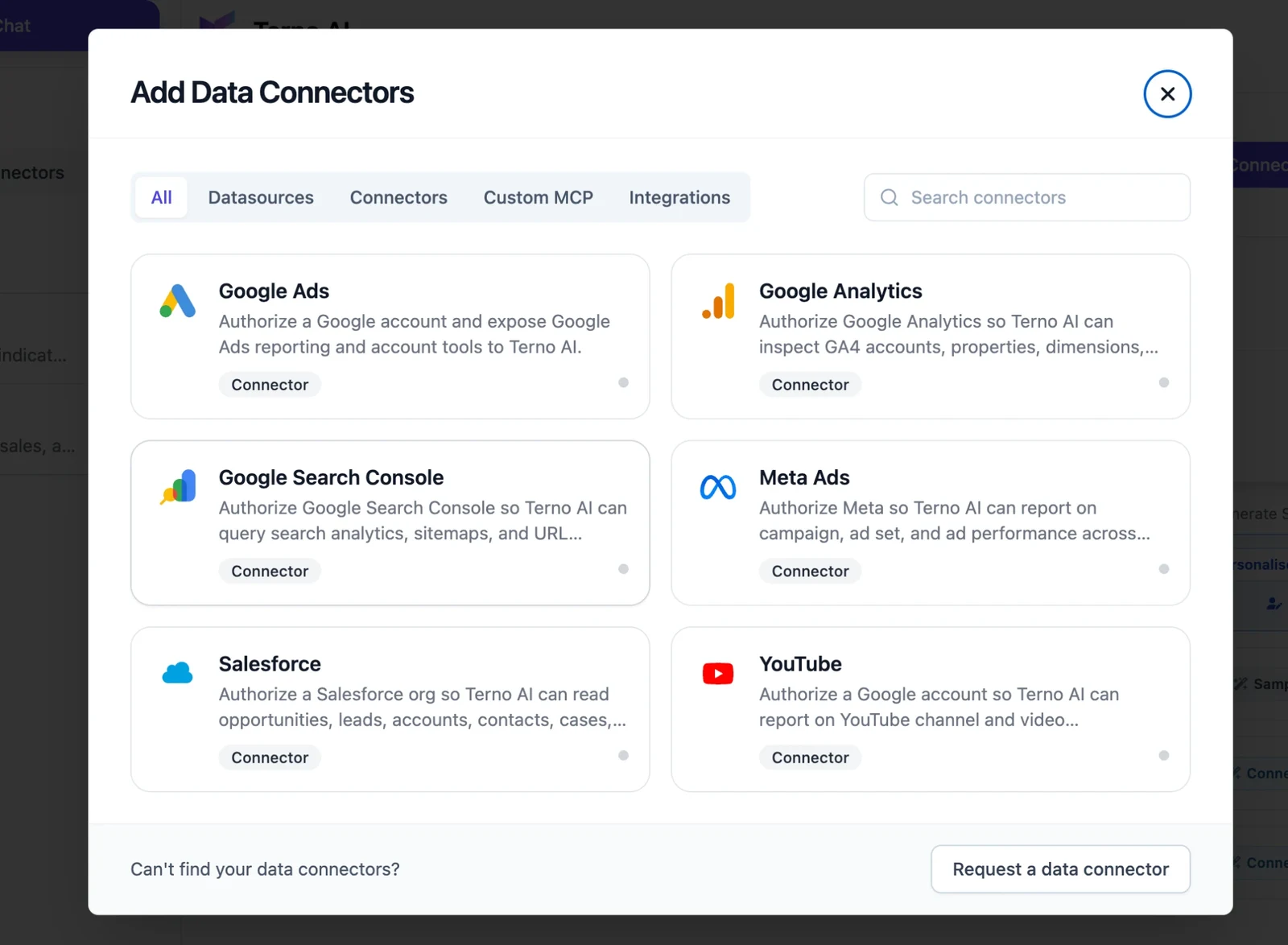
The dialog has five tabs:
| Tab | What’s in it |
|---|---|
| All | Everything in one list. Use Search connectors to find one quickly. |
| Datasources | Databases and data warehouses. |
| Connectors | Business apps you connect by signing in. |
| Custom MCP | Your own MCP servers. See Custom MCP servers. |
| Integrations | Slack and Microsoft Teams. |
Supported sources
Section titled “Supported sources”Databases and warehouses
Section titled “Databases and warehouses”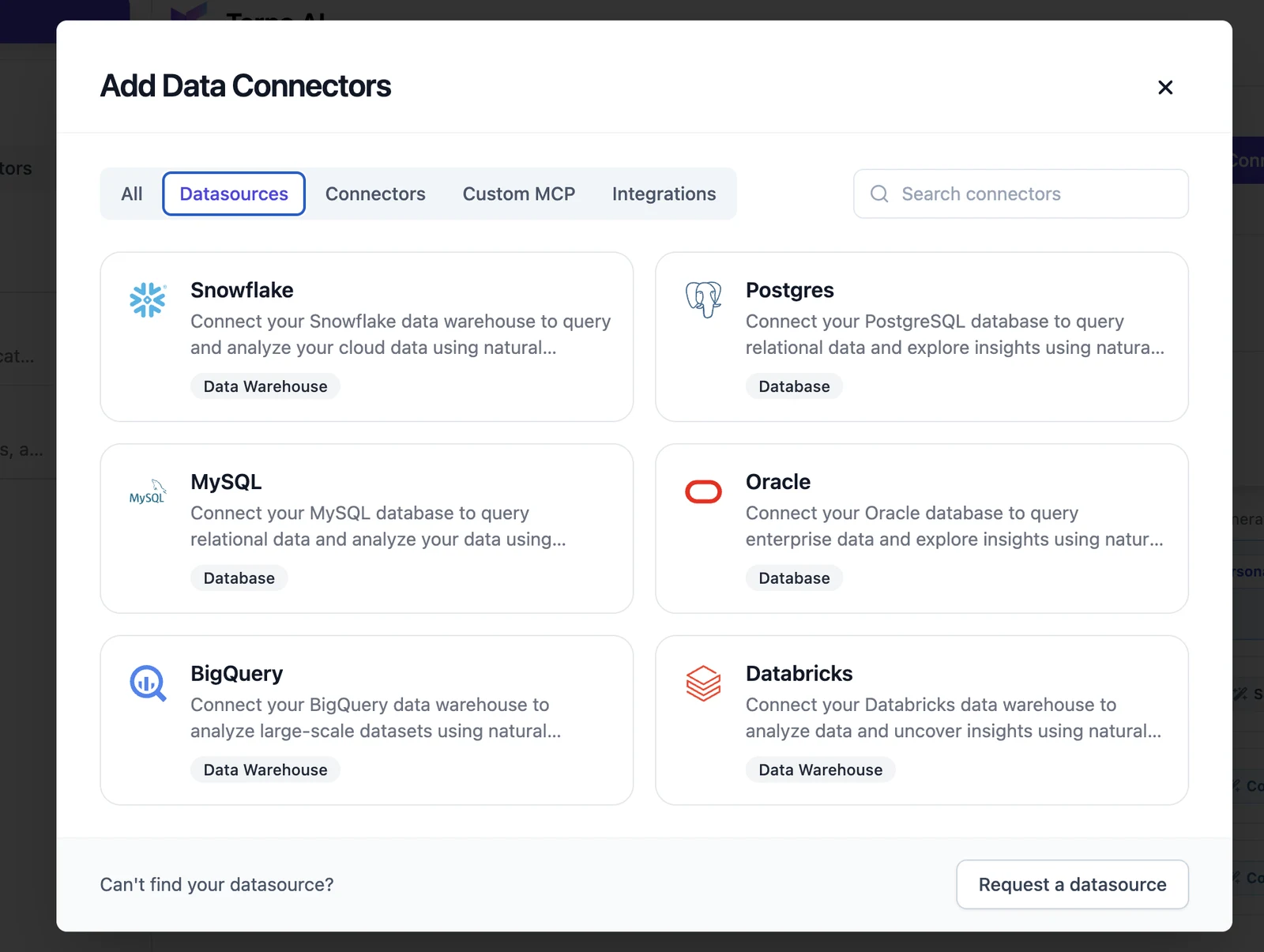
Business apps
Section titled “Business apps”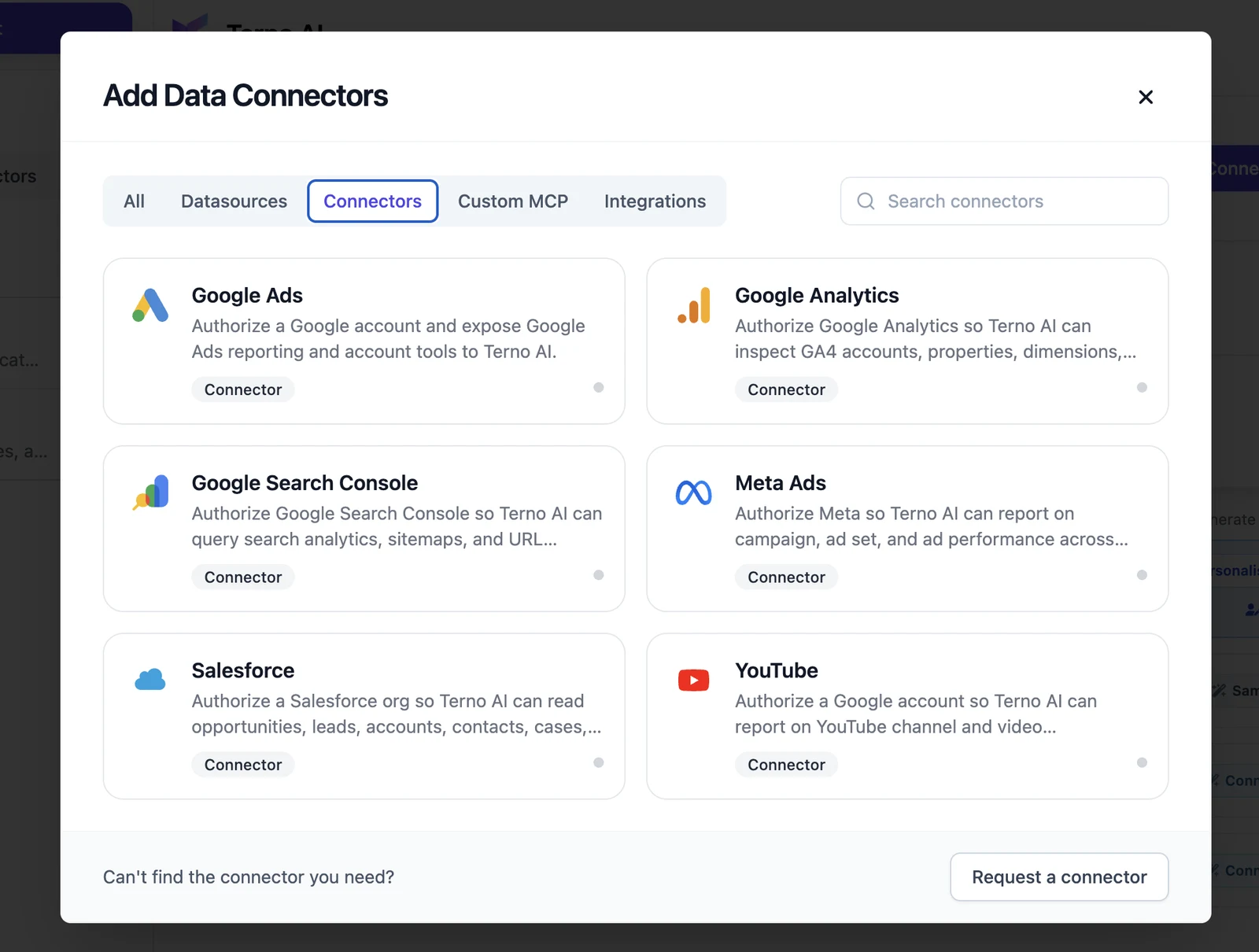
Request a connector
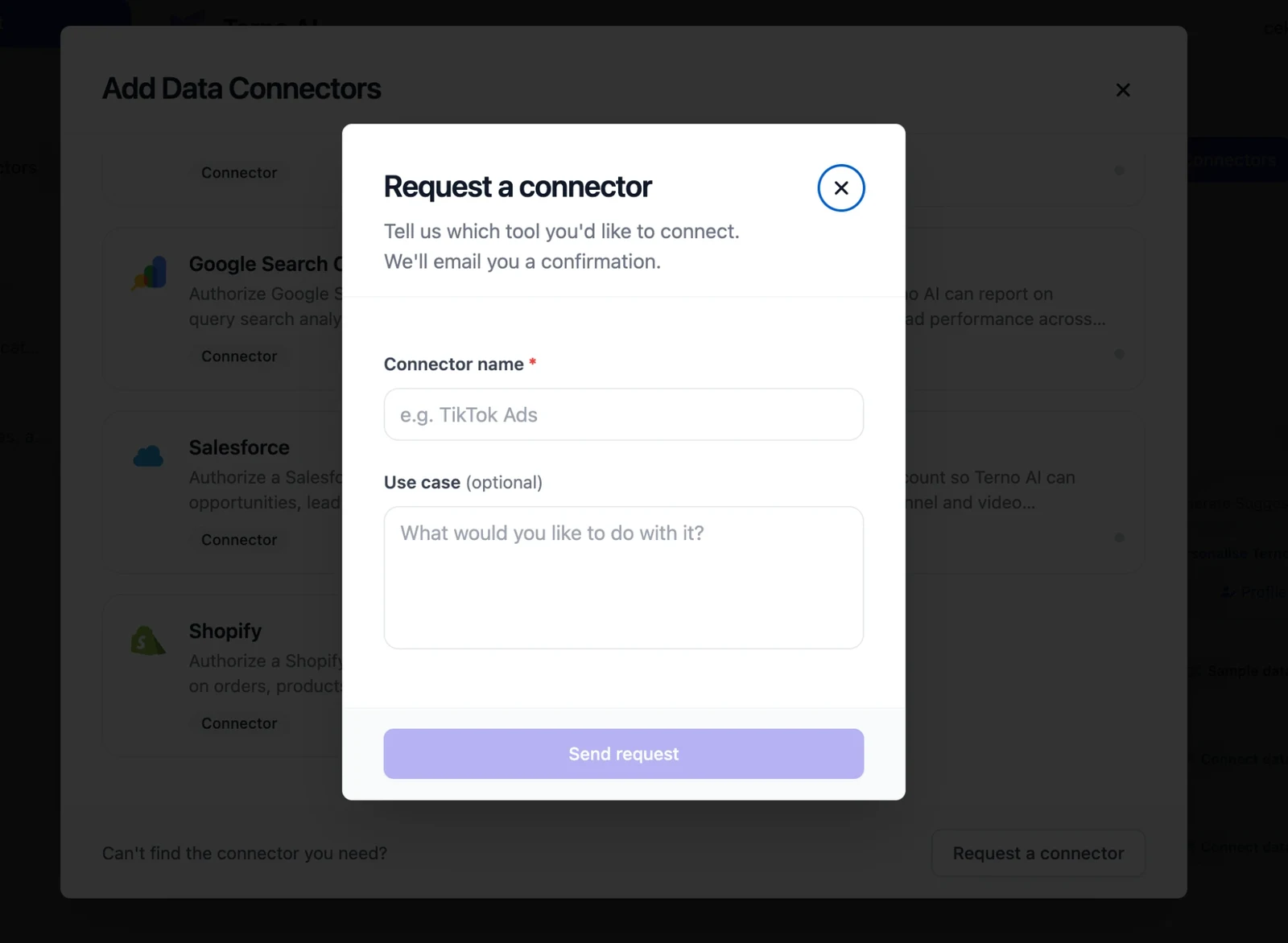
Section titled “Request a connector”Can’t find what you need? Click Request a datasource, Request a connector, or Request a data connector at the bottom of the dialog. Enter the tool’s name and, optionally, what you’d like to do with it, then click Send request. We’ll email you a confirmation.
How it works
Section titled “How it works”- Connect: an admin fills in the connection form, or signs in to the app. Terno tests the connection before saving it.
- Learn: for databases, Terno reads your tables, columns, and keys, and can explore the data in the background to learn how it fits together.
- Ask: anyone in the workspace asks a question in plain English.
- Query: Terno writes the SQL or API request, runs it, and checks the result. SQLShield blocks anything that isn’t a read-only
SELECT. - Answer: you get a clear explanation with tables and charts, plus suggested follow-ups.
Security
Section titled “Security”- Encrypted credentials: passwords, tokens, and connection strings are encrypted at rest and used only to connect to your source.
- Never shared with the AI: the AI never sees your credentials, and it’s instructed never to ask for them in chat.
- Read-only SQL: SQLShield parses every SQL statement and only allows a single
SELECT. Inserts, updates, deletes, and schema changes are blocked. - Your permissions: admins can limit which tables, columns, rows, and ad accounts each group can use. See Access control.