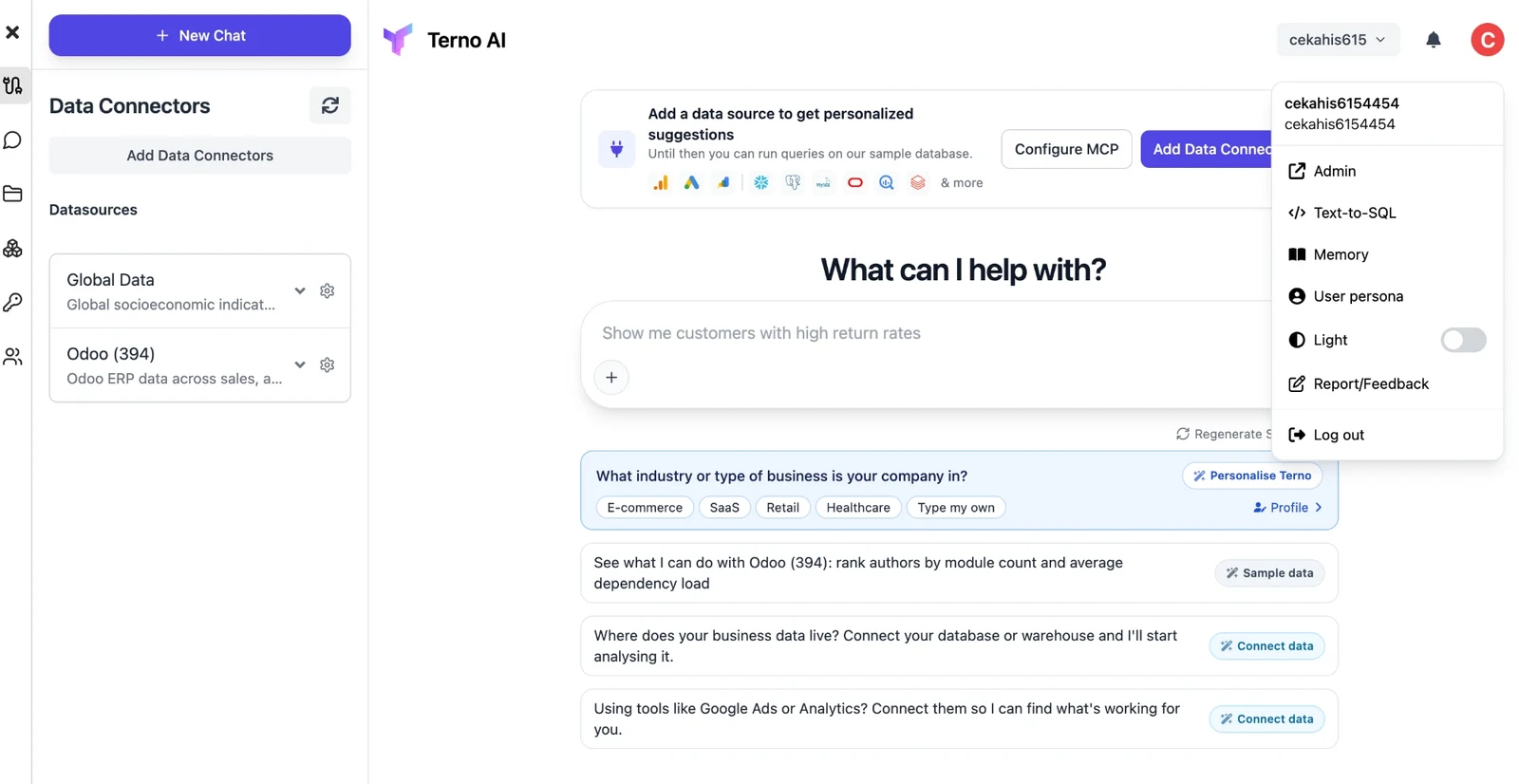
A tour of the app
The main areas of the Terno AI app, from the home screen to the sidebar and menus.
Home screen
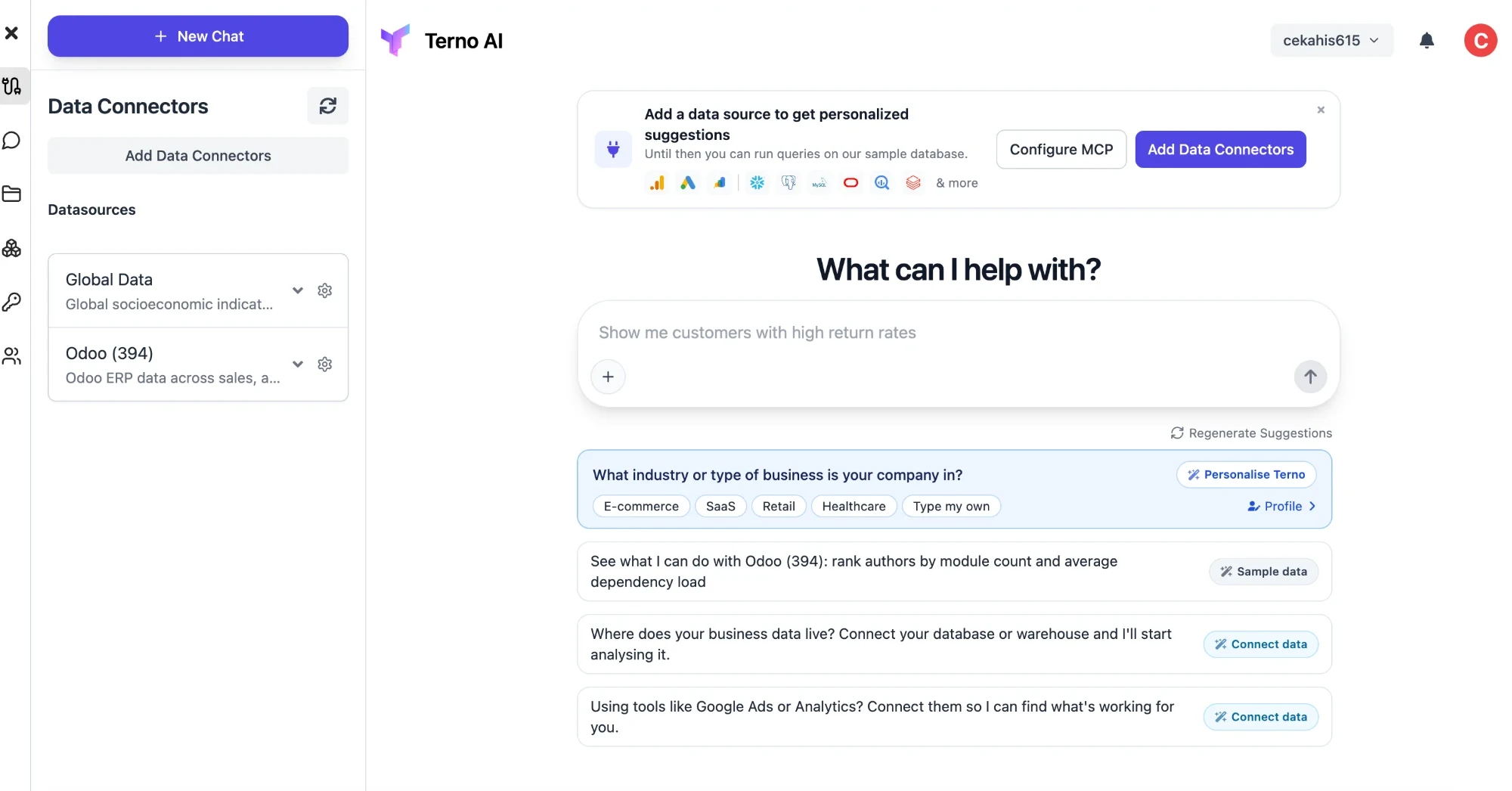
Section titled “Home screen”- Question box: ask anything about your data. Click + for attachments and options.
- Suggestions: questions Terno thinks are useful for your data. Click Regenerate Suggestions for new ones. The first card asks about your business so Terno can tailor them (Personalise Terno).
- Add Data Connectors / Configure MCP: connect your data, or add your own MCP servers.
Sidebar
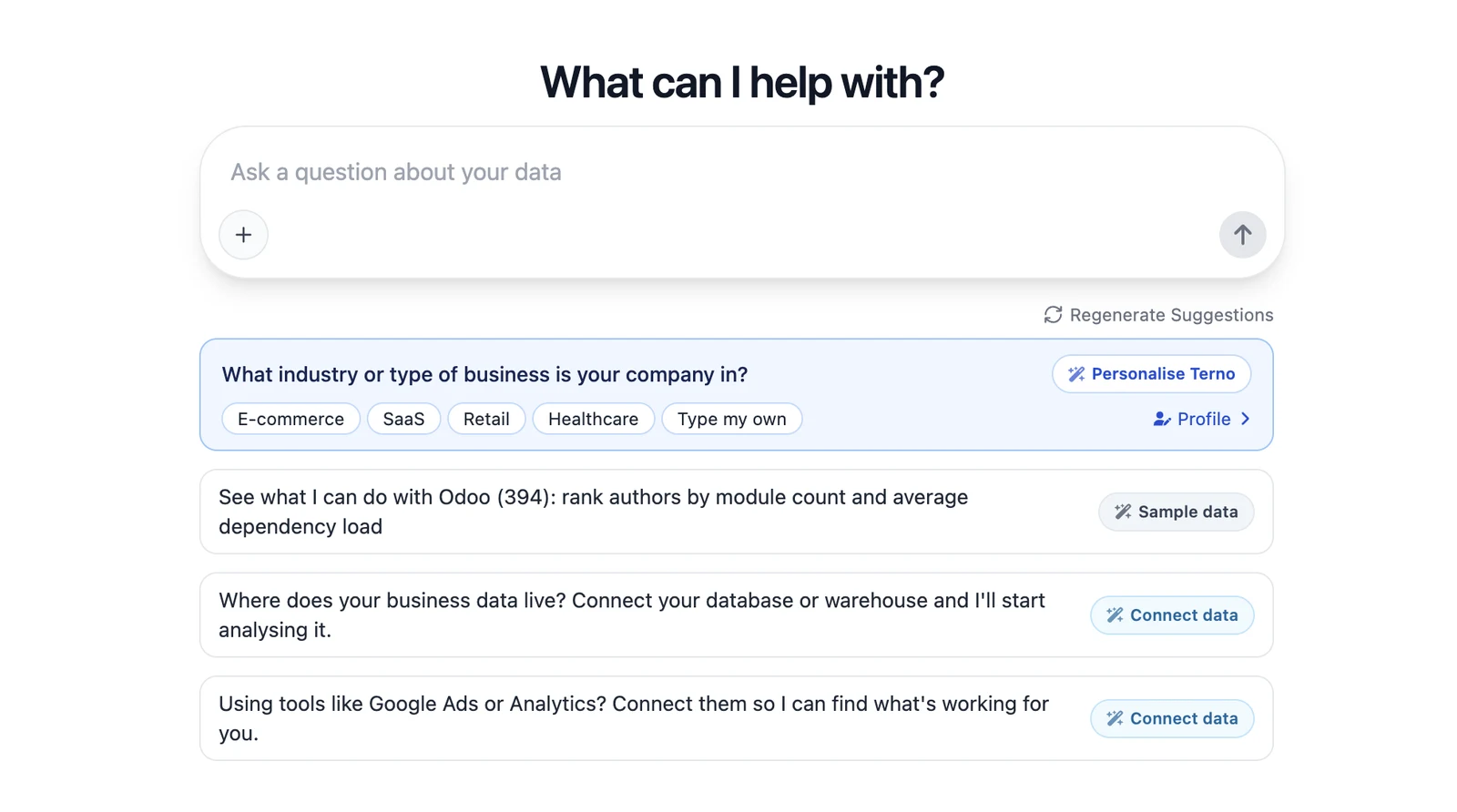
Section titled “Sidebar”Open the sidebar with the ☰ button at the top left. The icons down the left edge switch between panels. Some panels can be turned off for your workspace.
| Panel | What it’s for |
|---|---|
| Data Connectors | Your connected datasources. Expand one to see its tables. |
| Chat History | Your previous chats. |
| File Explorer | Files you uploaded and files Terno created. See Files. |
| App Services | Saved, reusable analyses. See App Services. |
| Environment Variables | Keys and values Terno can use in your workspace. See Environment variables. |
| Team | Members and invites. Admins only. See Workspace and team. |
Top bar
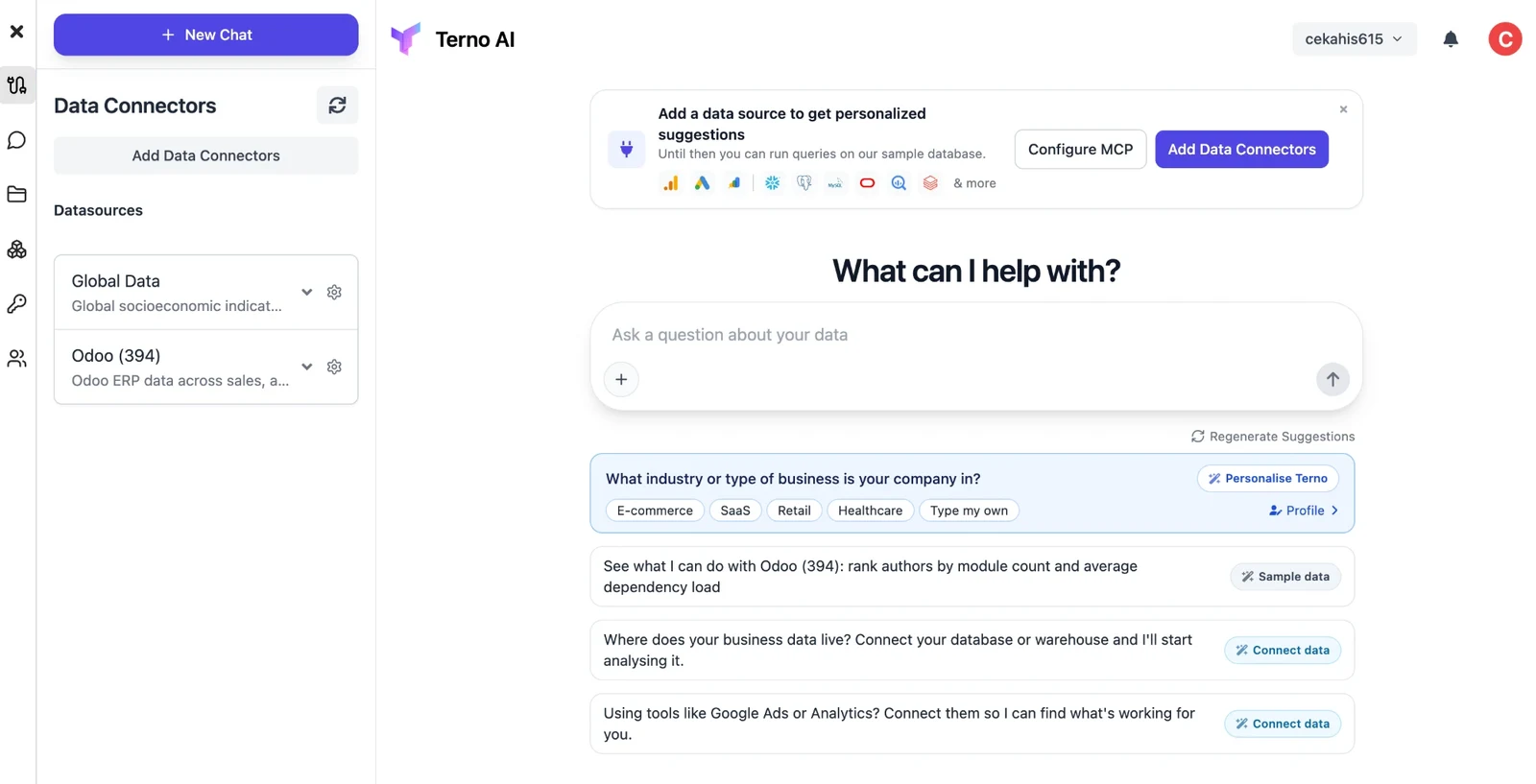
Section titled “Top bar”- Workspace menu (your workspace name): switch between workspaces, or create a new one.
- Bell: notifications.
- Profile menu (your avatar): Admin, Text-to-SQL, Memory, User persona, light/dark theme, Report/Feedback, and Log out. Admin and Memory open the admin panel, which only workspace owners and admins can use.