
Custom MCP servers
Add your own MCP servers to Terno AI so the Terno agent can use their tools.
Connect any Model Context Protocol server to Terno, and the Terno agent can use its tools in your chats.
-
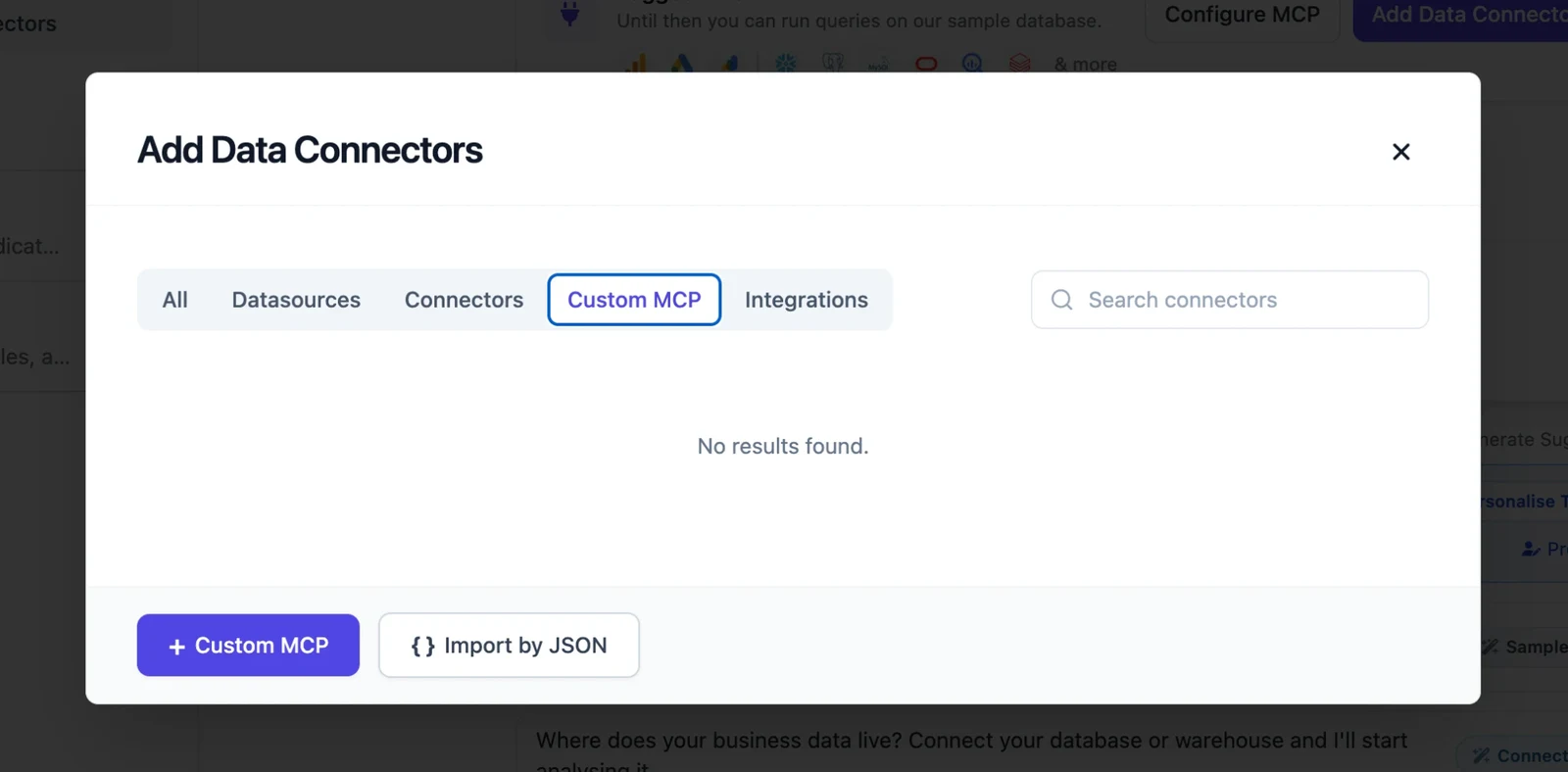
Click Configure MCP on the home screen, or open Add Data Connectors and choose the Custom MCP tab.
-
Click + Custom MCP. To paste an existing MCP config instead, click Import by JSON.
-
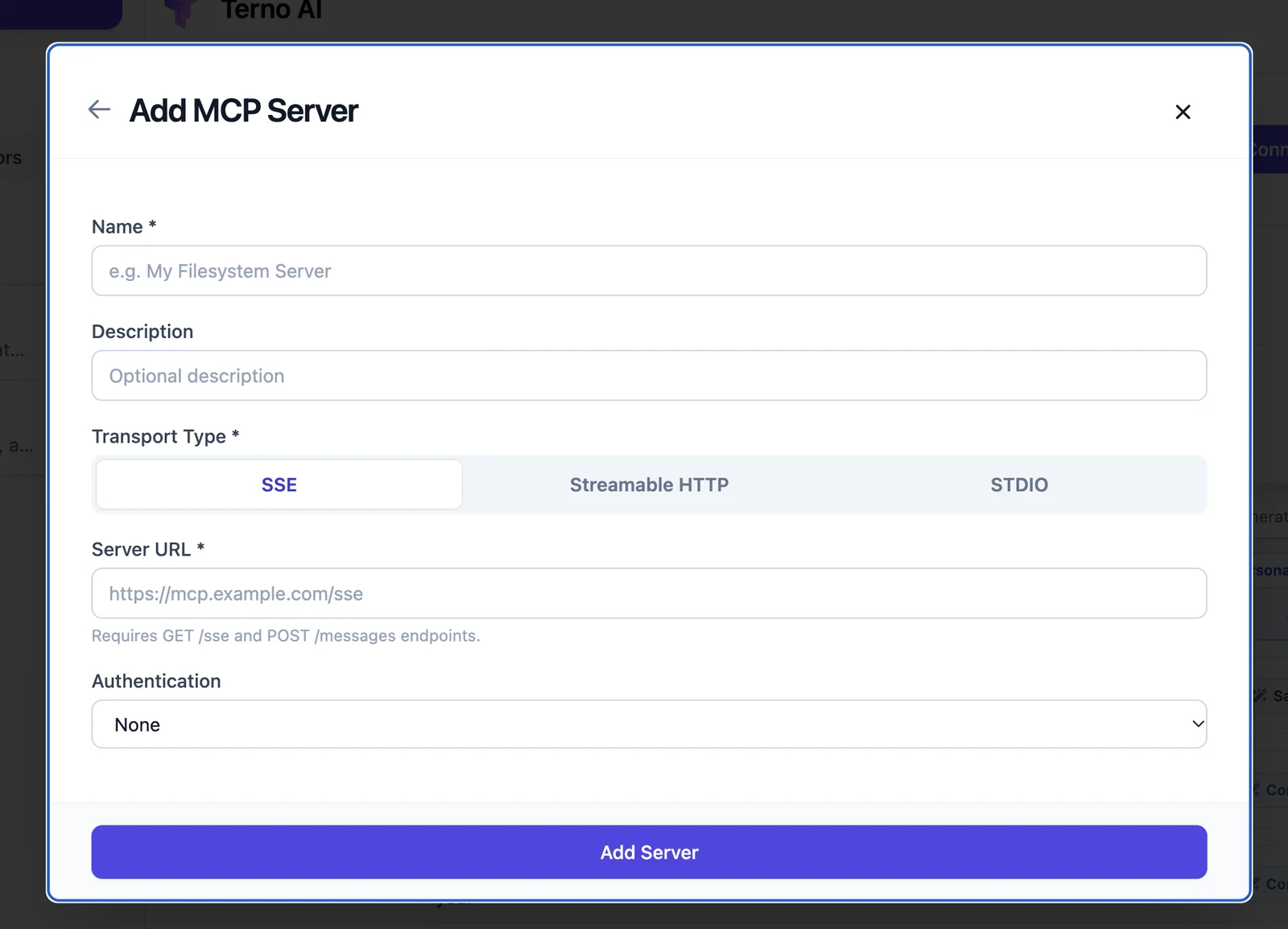
Fill in the server details:
- Name and an optional Description.
- Transport Type: SSE or Streamable HTTP for remote servers, or STDIO for a local command.
- Server URL: for SSE, the server must provide
GET /sseandPOST /messagesendpoints. - Authentication: None, Bearer Token, API Key (sent in the
X-Api-Keyheader unless you choose another), or OAuth 2.0 (tokens refresh automatically).
-
Click Add Server.
Import by JSON
Section titled “Import by JSON”Click Import by JSON and paste a config you already use in Claude Desktop, Cursor, or VS Code.
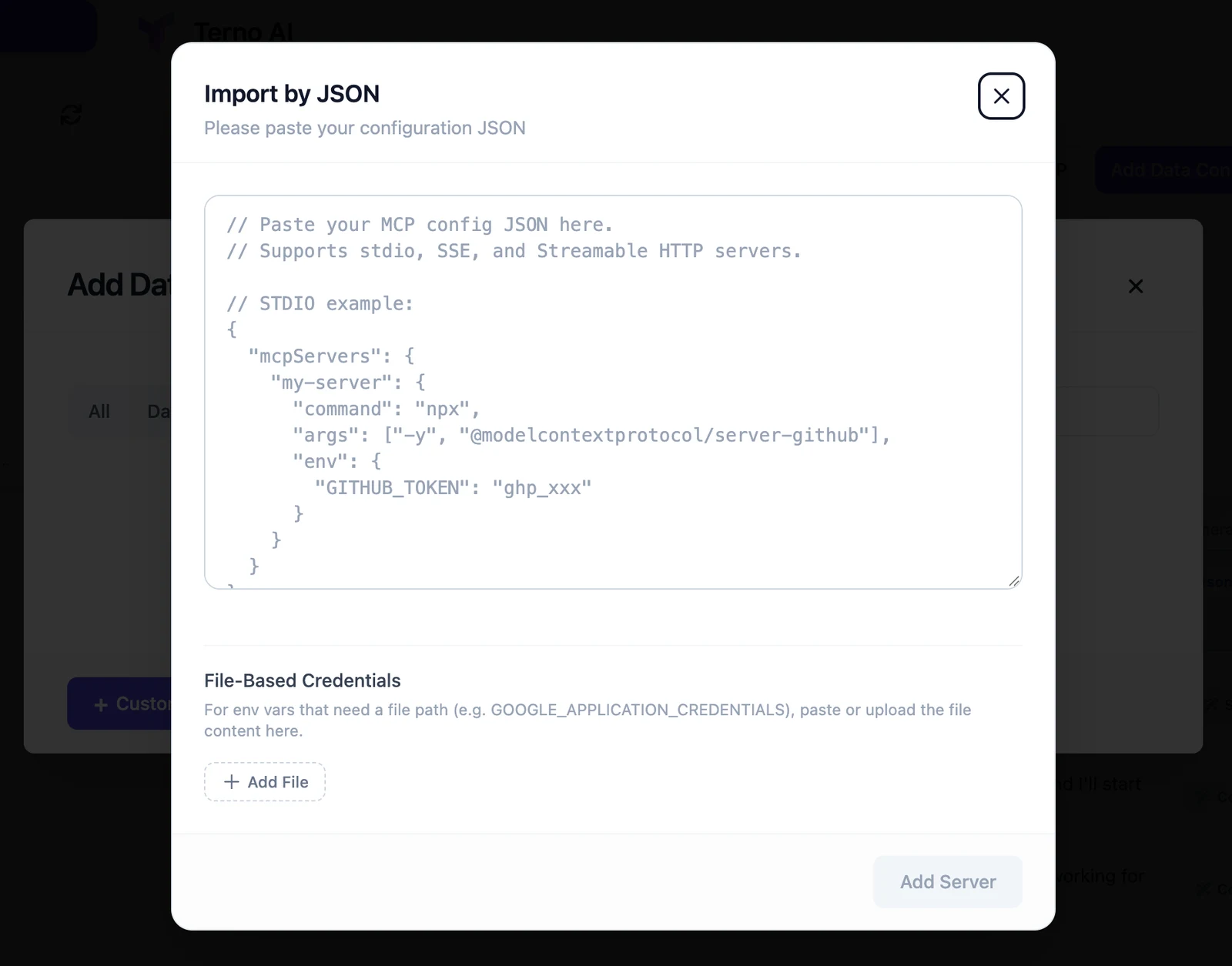
Terno accepts any of these shapes:
{ "mcpServers": { "github": { "url": "https://api.example.com/mcp" }, "files": { "command": "npx", "args": ["-y", "@modelcontextprotocol/server-filesystem", "/data"] } }}mcpServers,servers, or a plain map of server names.- Remote servers use
url(alsoserverUrl,httpUrl, orsseUrl). A plainurlis treated as Streamable HTTP. UsesseUrl, or set"type": "sse", for an SSE server. - Local servers use
command,args, andenv.
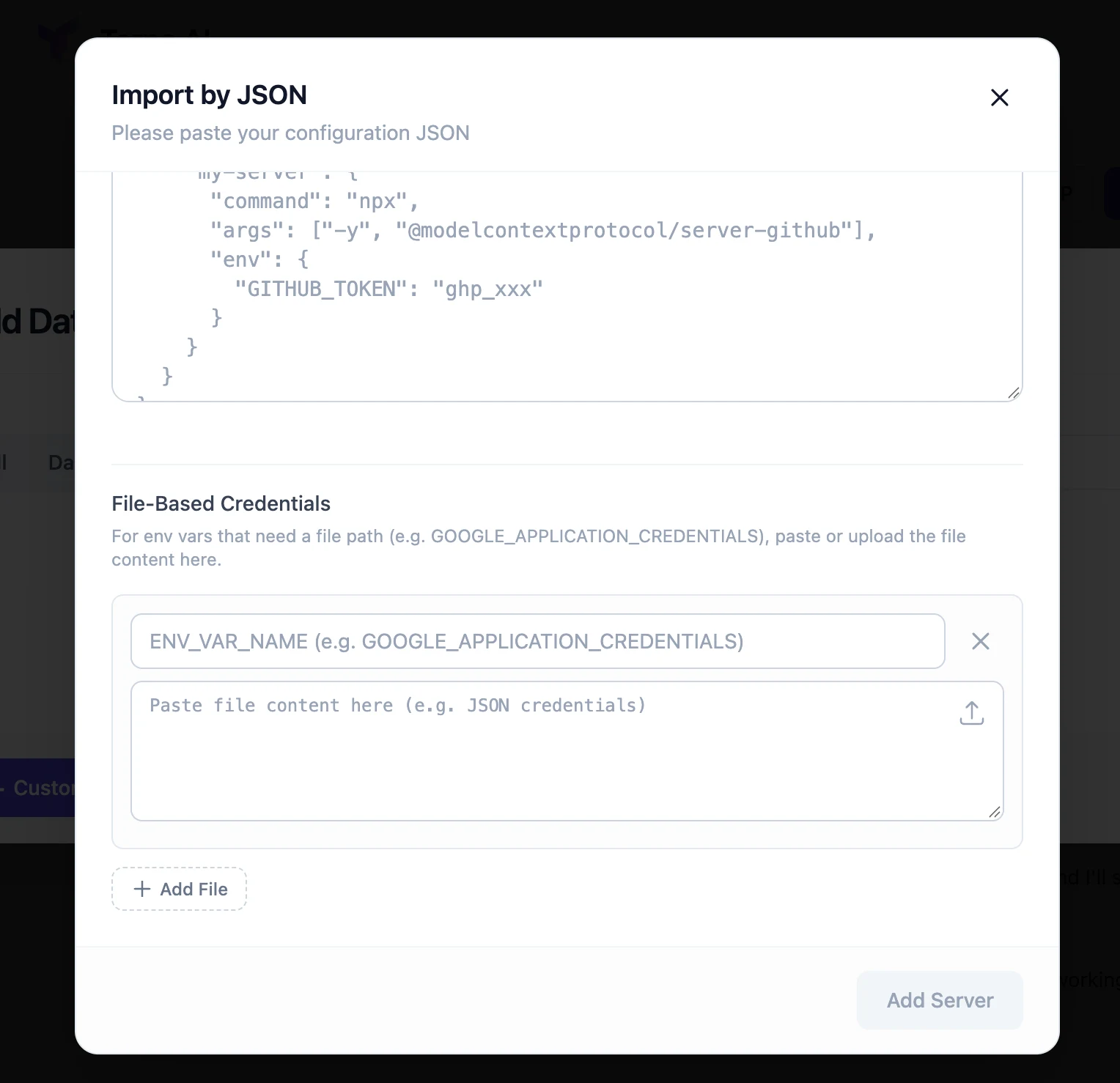
File-based credentials: some servers need a file path in an environment variable, such as GOOGLE_APPLICATION_CREDENTIALS. Click Add File under File-Based Credentials, enter the variable name, and paste the file’s contents or upload the file.
Using the tools
Section titled “Using the tools”Once added, Terno can use the server’s tools in any chat in your workspace. They appear as mcp__<server>__<tool>, so you can tell which server a tool comes from. Ask naturally, for example “Using the GitHub tools, list open pull requests”.
Manage servers
Section titled “Manage servers”Servers you add are yours. You and members of your workspace’s Org Admin group can edit, turn off, or delete them from the Custom MCP tab. Secrets such as tokens and API keys are stored encrypted.