
Snowflake
Connect your Snowflake data warehouse to Terno AI with a password or a programmatic access token.
Connect a Snowflake data warehouse and ask questions about it in plain English. Terno supports password and programmatic access token sign-in.
Before you start
Section titled “Before you start”You’ll need:
- Your Snowflake account identifier, a database, a schema, a warehouse, and a role.
- Either a username and password, or a programmatic access token.
- Admin rights in your Terno workspace, to see the option to add a datasource.
Connect Snowflake
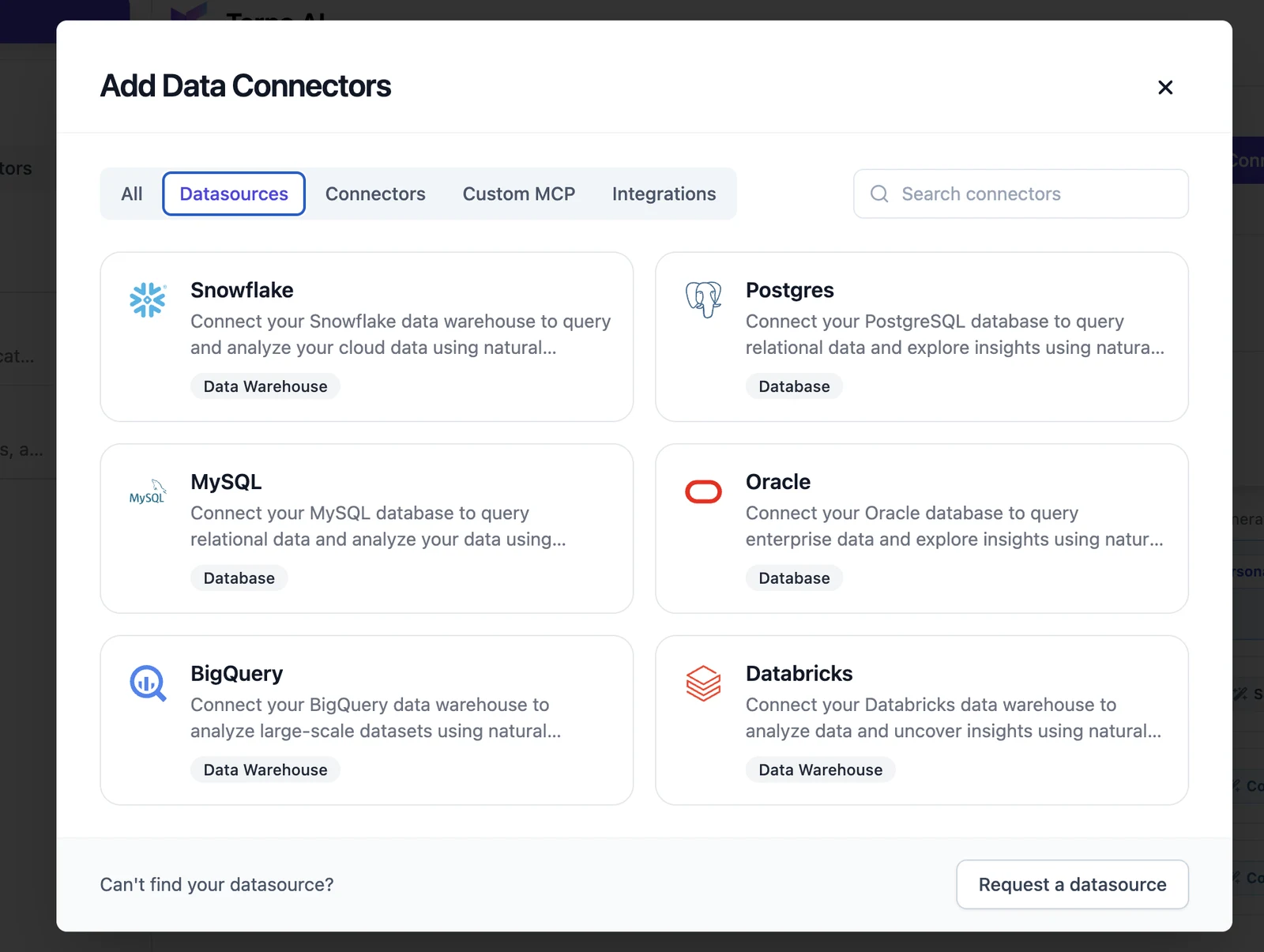
Section titled “Connect Snowflake”- Click Add Data Connectors, open the Datasources tab, and choose Snowflake.
- Choose Standard Setup or Connection URI at the top of the form.
- Leave Start exploring my database ticked (it’s on by default). Right after connecting, Terno opens a background chat that explores the database and learns its tables, joins, and metrics. You’ll find it in your chat history and can open it any time.
- Enter a Display Name and an optional Description, then fill in the fields below.
- Click Add Connection. Terno tests the connection before saving it. If the test fails, you’ll see what went wrong, and nothing is saved.
Connection fields
Section titled “Connection fields”Display Name required
Section titled “Display Name required”A name for this connection, such as Production DB or Sales warehouse. It can be up to 40 characters and must be unique.
Description optional
Section titled “Description optional”A short note on what the data is about, such as Orders, customers, and payments for our online store. Up to 1024 characters. Terno uses it to understand when to use this source.
Standard Setup
Section titled “Standard Setup”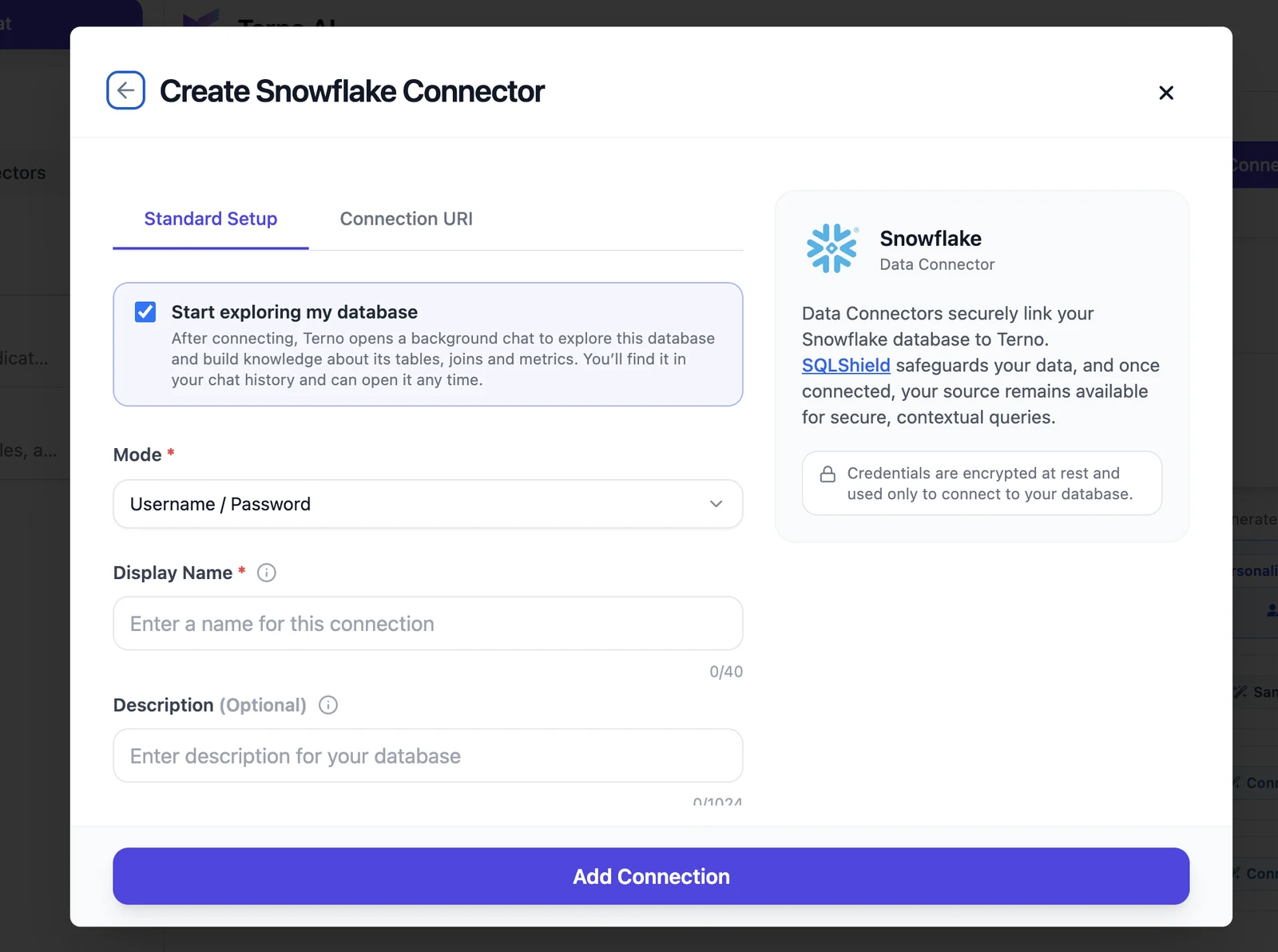
Pick a Mode first. The fields change with it.
Mode: Username / Password
Section titled “Mode: Username / Password”USER required
Section titled “USER required”Your Snowflake login name.
PASSWORD required
Section titled “PASSWORD required”The password for that user.
ACCOUNT required
Section titled “ACCOUNT required”Your account identifier, such as myorg-myaccount. Find it in Snowsight under your account menu.
DB required
Section titled “DB required”The database to analyse.
SCHEMA required
Section titled “SCHEMA required”The schema inside that database.
MFA_TYPE optional
Section titled “MFA_TYPE optional”Choose None. Users who must sign in with MFA should use a programmatic access token instead.
ROLE required
Section titled “ROLE required”The role Terno uses, such as TERNO_READONLY.
WAREHOUSE required
Section titled “WAREHOUSE required”The virtual warehouse that runs Terno’s queries. It must be able to resume.
Mode: Programmatic Access Token
Section titled “Mode: Programmatic Access Token”Use this if your account requires MFA or doesn’t allow password logins.
ACCESS_TOKEN required
Section titled “ACCESS_TOKEN required”A programmatic access token, created in Snowsight or with ALTER USER … ADD PROGRAMMATIC ACCESS TOKEN.
ACCOUNT required
Section titled “ACCOUNT required”Your account identifier.
USER required
Section titled “USER required”The user the token belongs to.
DB required
Section titled “DB required”The database to analyse.
SCHEMA required
Section titled “SCHEMA required”The schema inside that database.
ROLE required
Section titled “ROLE required”The role Terno uses.
WAREHOUSE required
Section titled “WAREHOUSE required”The warehouse that runs Terno’s queries.
Connection URI
Section titled “Connection URI”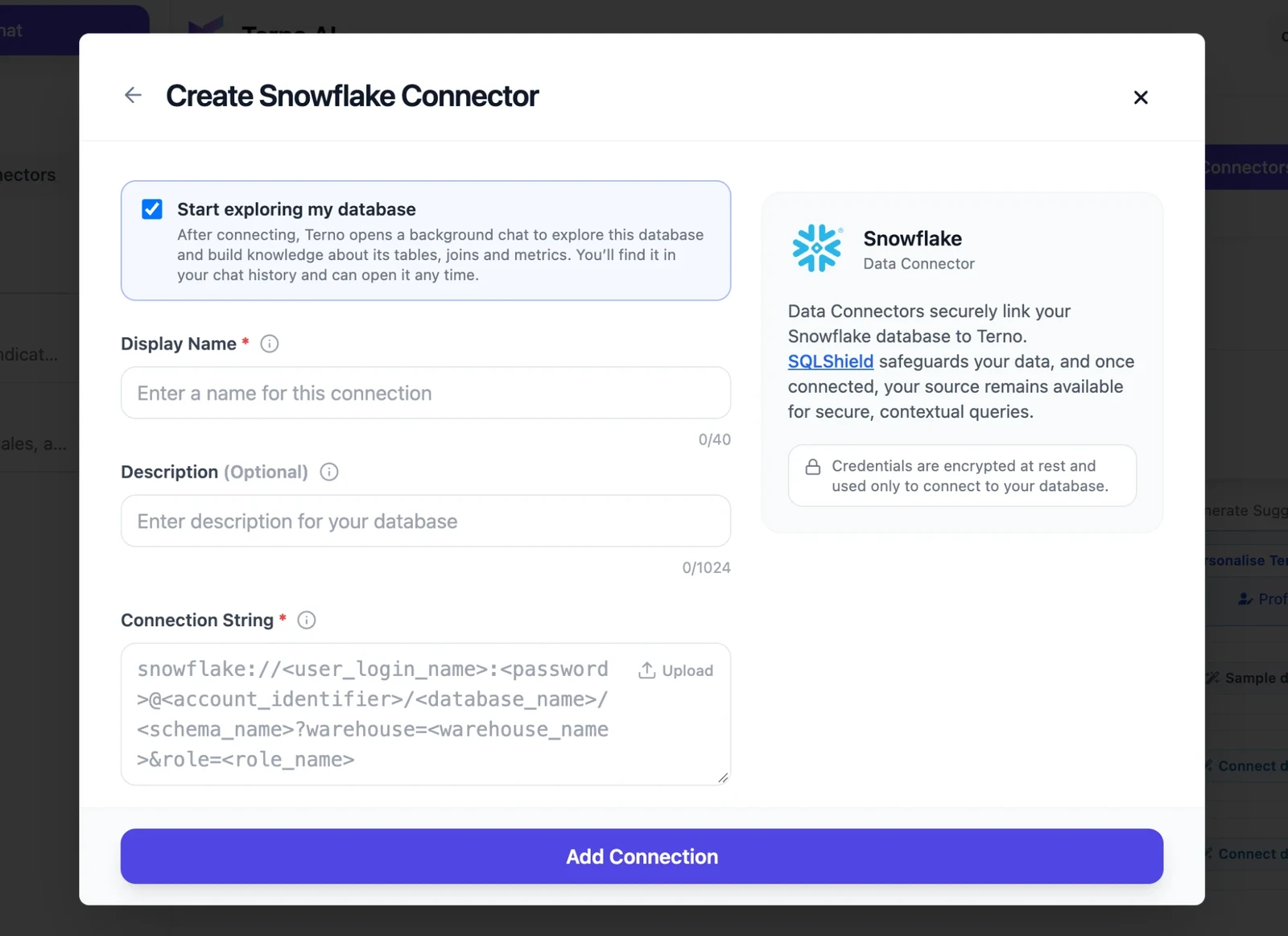
snowflake://<user>:<password>@<account_identifier>/<database>/<schema>?warehouse=<warehouse>&role=<role>Create a read-only user
Section titled “Create a read-only user”Run this as SECURITYADMIN (or an equivalent role), replacing the names:
CREATE ROLE IF NOT EXISTS TERNO_READONLY;GRANT USAGE ON WAREHOUSE ANALYTICS_WH TO ROLE TERNO_READONLY;GRANT USAGE ON DATABASE ANALYTICS TO ROLE TERNO_READONLY;GRANT USAGE ON SCHEMA ANALYTICS.PUBLIC TO ROLE TERNO_READONLY;GRANT SELECT ON ALL TABLES IN SCHEMA ANALYTICS.PUBLIC TO ROLE TERNO_READONLY;GRANT SELECT ON FUTURE TABLES IN SCHEMA ANALYTICS.PUBLIC TO ROLE TERNO_READONLY;CREATE USER IF NOT EXISTS TERNO_USER PASSWORD = 'a-strong-password' DEFAULT_ROLE = TERNO_READONLY DEFAULT_WAREHOUSE = ANALYTICS_WH;GRANT ROLE TERNO_READONLY TO USER TERNO_USER;After you connect
Section titled “After you connect”Terno reads your tables, columns, primary keys, foreign keys, and row counts. You’ll get a DataSource Ready notification when it’s done, and the new source appears in the sidebar’s Data Connectors panel. Expand it to see its tables.
Ask questions
Section titled “Ask questions”Start a chat and ask in plain English, for example:
- “Which 10 customers spent the most this year?”
- “What’s the average order value by month?”
- “Show a chart of new sign-ups per week this quarter.”
Terno writes the SQL for Snowflake, runs it, and replies with tables, charts, and an explanation. You don’t need to know SQL.
Keep costs down
Section titled “Keep costs down”Snowflake bills for warehouse running time. To keep Terno’s queries cheap:
- Use a small warehouse with auto-suspend set to a minute or two.
- Ask questions with a clear time range, such as “last 30 days”.
- Point Terno at summary tables for big-picture questions.
Security
Section titled “Security”- Credentials are encrypted at rest and used only to connect to your database.
- The AI never sees your password or connection string.
- SQLShield allows only a single read-only
SELECTper query. Inserts, updates, deletes, and schema changes are blocked. - Admins can hide tables, columns, and rows from groups of users. See Access control.
Troubleshooting
Section titled “Troubleshooting”Connection timed out, or Terno can’t reach the server
- Check the host and port.
- Make sure the database accepts connections from outside your network, and that no firewall or security group blocks it.
- Use a real hostname or IP address.
localhostand127.0.0.1point to Terno’s own servers, not yours. - Check the database is running.
Authentication failed
- Check the username and password. Watch for extra spaces when pasting.
- Make sure the user is allowed to log in to this database.
- If you used a Connection URI, special characters in the password (like
@,/,:) must be URL-encoded.
The database does not exist
Check the spelling of the database name. It’s the database inside the server, not the server name.
Terno can’t find my tables
- Make sure the user has
SELECTpermission on the tables. - Check you connected to the right database, schema, and role, and that the warehouse is running or can resume.
- An admin may have hidden some tables. See Access control.
See Connection errors for the full list of messages.
Best practices
Section titled “Best practices”- Use a read-only user created just for Terno, with access to only the data you want to analyse.
- Try a staging or replica database first before connecting production.
- Add a description and table descriptions so Terno picks the right tables. See Add context.
- Watch database load when asking for large, unfiltered results on production systems.
- Work with your database administrator on network access and permissions.