Workspace and team
Create workspaces, invite teammates, and manage your Terno AI workspace from the admin panel.
A workspace holds your data sources, chats, files, and members. Each workspace has its own address, such as acme.app.terno.ai.
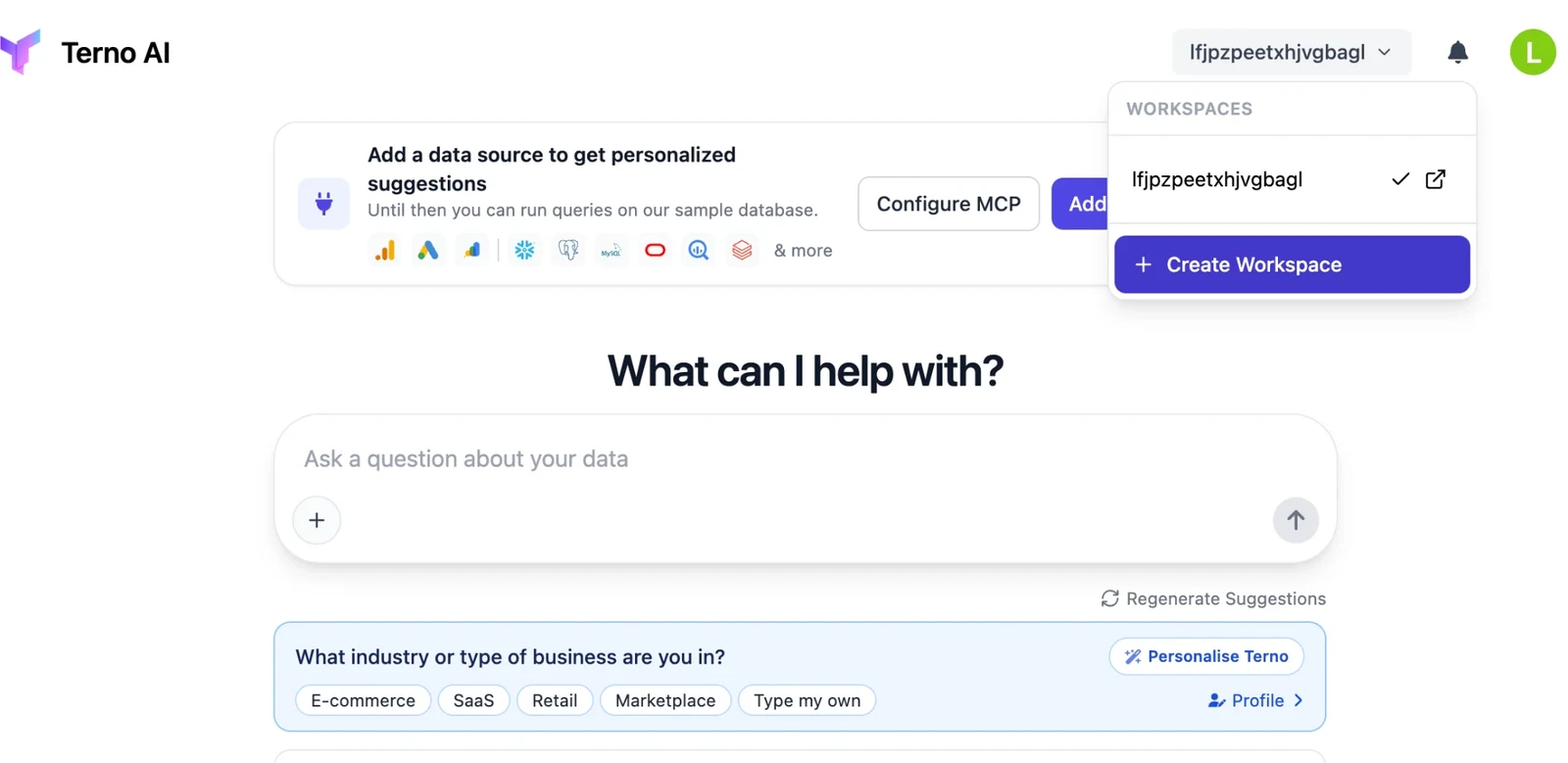
Switch or create workspaces
Section titled “Switch or create workspaces”Click your workspace name at the top right. The menu lists your workspaces. Click one to switch, or click Create Workspace to add another.
Invite your team
Section titled “Invite your team”-
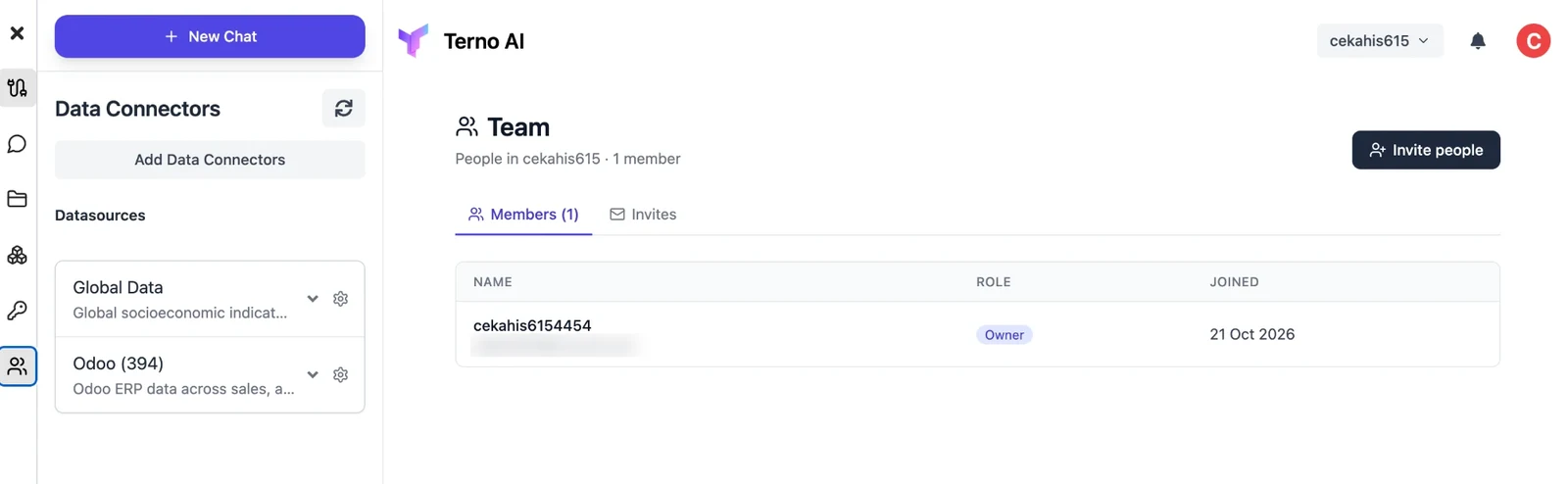
Open the Team panel from the sidebar. Only workspace admins see it. You’ll see everyone in the workspace and their role.
-
Click Invite people.
-
Enter one or more email addresses. Press Enter or a comma after each one, or paste a list. Then click Send invite.
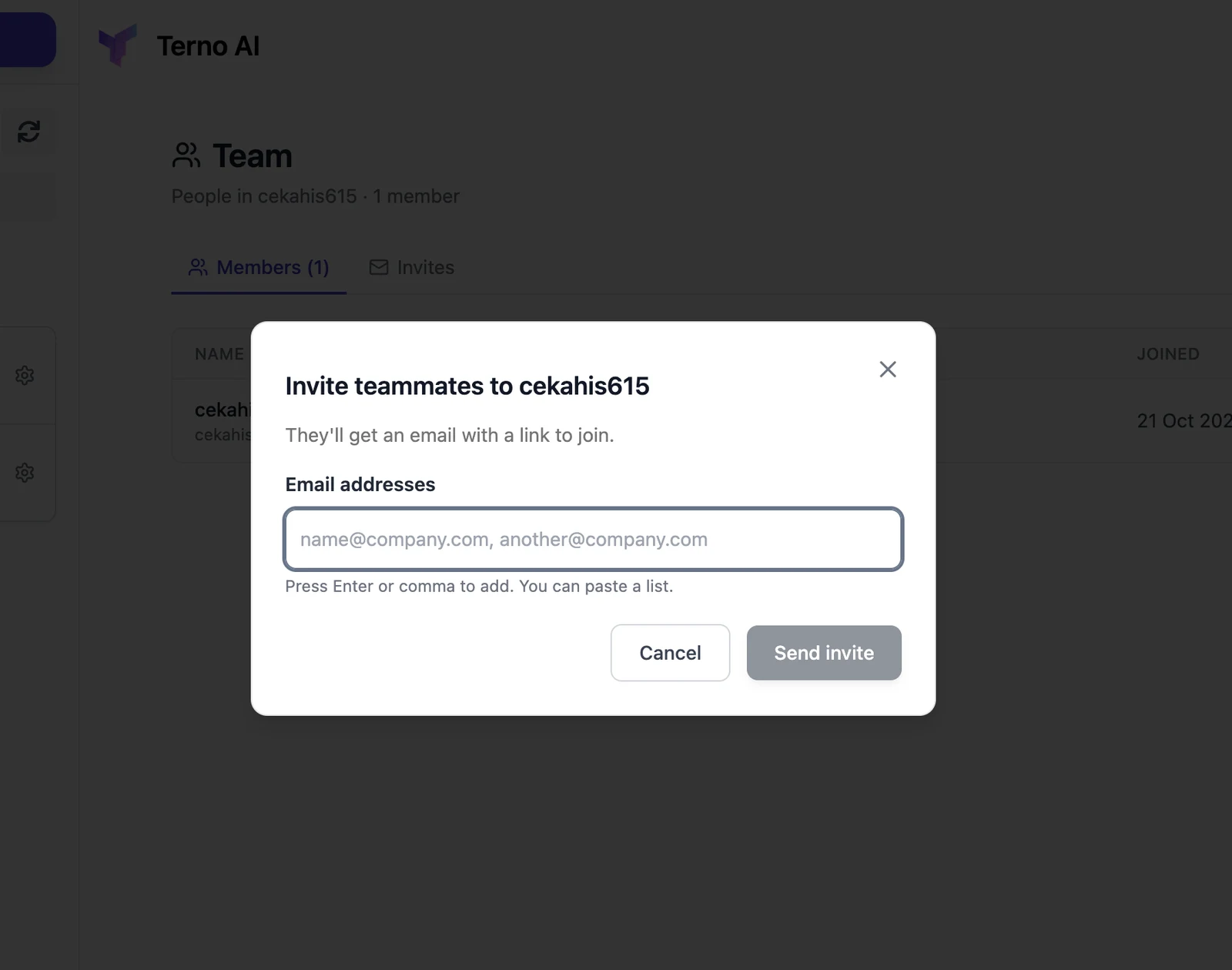
Each person gets an email with a link to join. They join when they sign up or log in with that email address. Invites expire after 7 days. Pending invites appear under the Invites tab. Questions asked by members use the workspace’s credits.
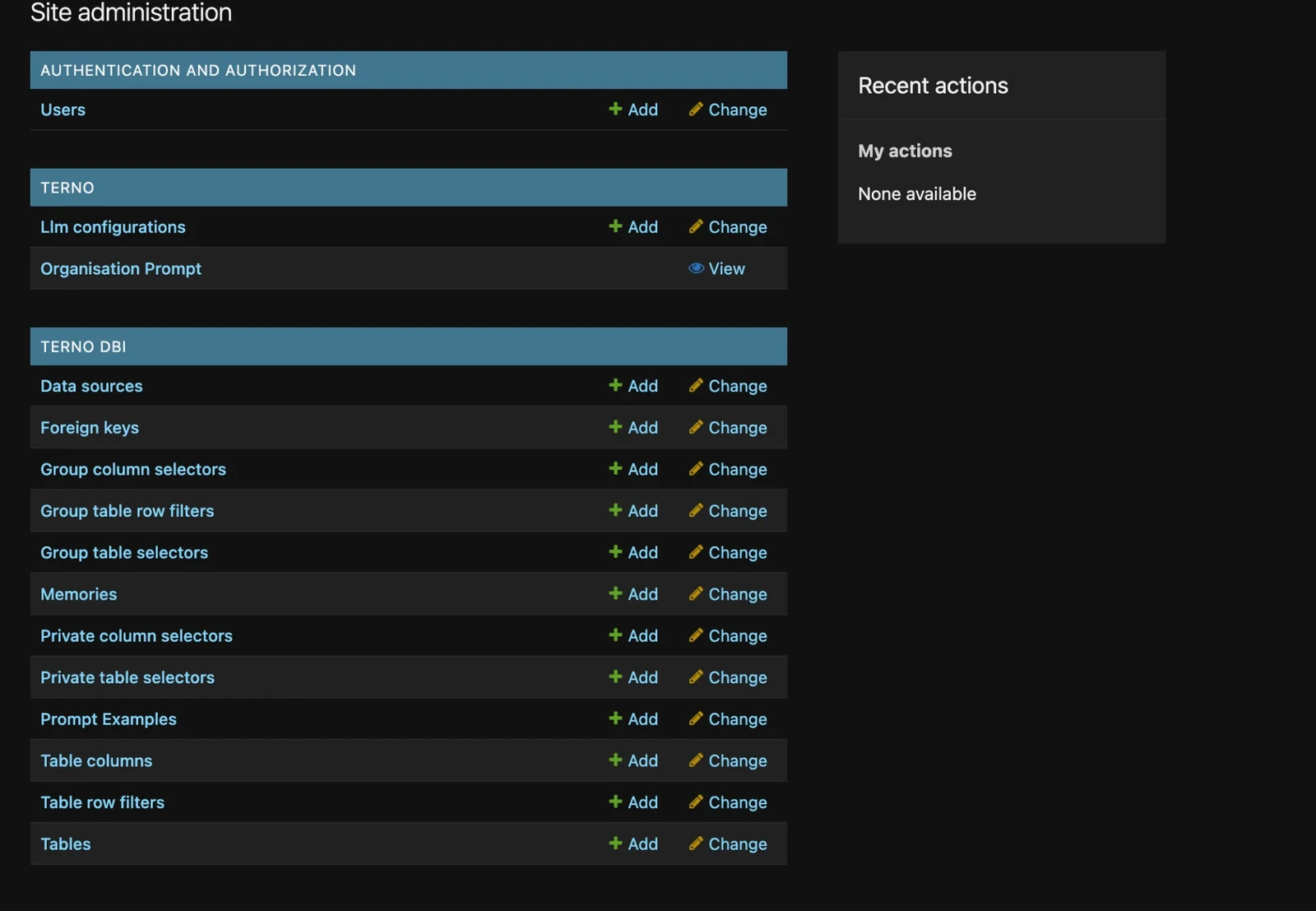
Admin panel
Section titled “Admin panel”Workspace owners and admins can open Admin from the profile menu. It’s where you fine-tune how Terno works with your data:
- Data sources, tables, and columns: add descriptions so Terno understands your data better.
- Access control: choose which tables, columns, and rows each group of users can see (table selectors, column selectors, and row filters).
- LLM configurations: choose which model Terno uses.
- Memories and Prompt examples: teach Terno your business terms and good example questions.
- Users: manage accounts in the workspace.