
Asking questions
How to ask Terno AI questions, use attachments and chat options, and work with answers.
Type a question in plain English and press Enter. Terno works out which data to use, writes and runs the queries, and replies with an answer.
Write good questions
Section titled “Write good questions”- Be specific about what and when: “Top 10 products by revenue last month” beats “show sales”.
- Ask for the format you want: “…as a bar chart”, “…as a table”, or “…export as CSV”.
- Name the source when you have several: “In Shopify, …” or “From the Postgres orders table, …”.
- Follow up in the same chat. Terno remembers the conversation, so “now split it by country” works.
How Terno answers
Section titled “How Terno answers”While it works, Terno shows a task list of its plan and ticks steps off as it goes. Click Show thinking to see the detail.
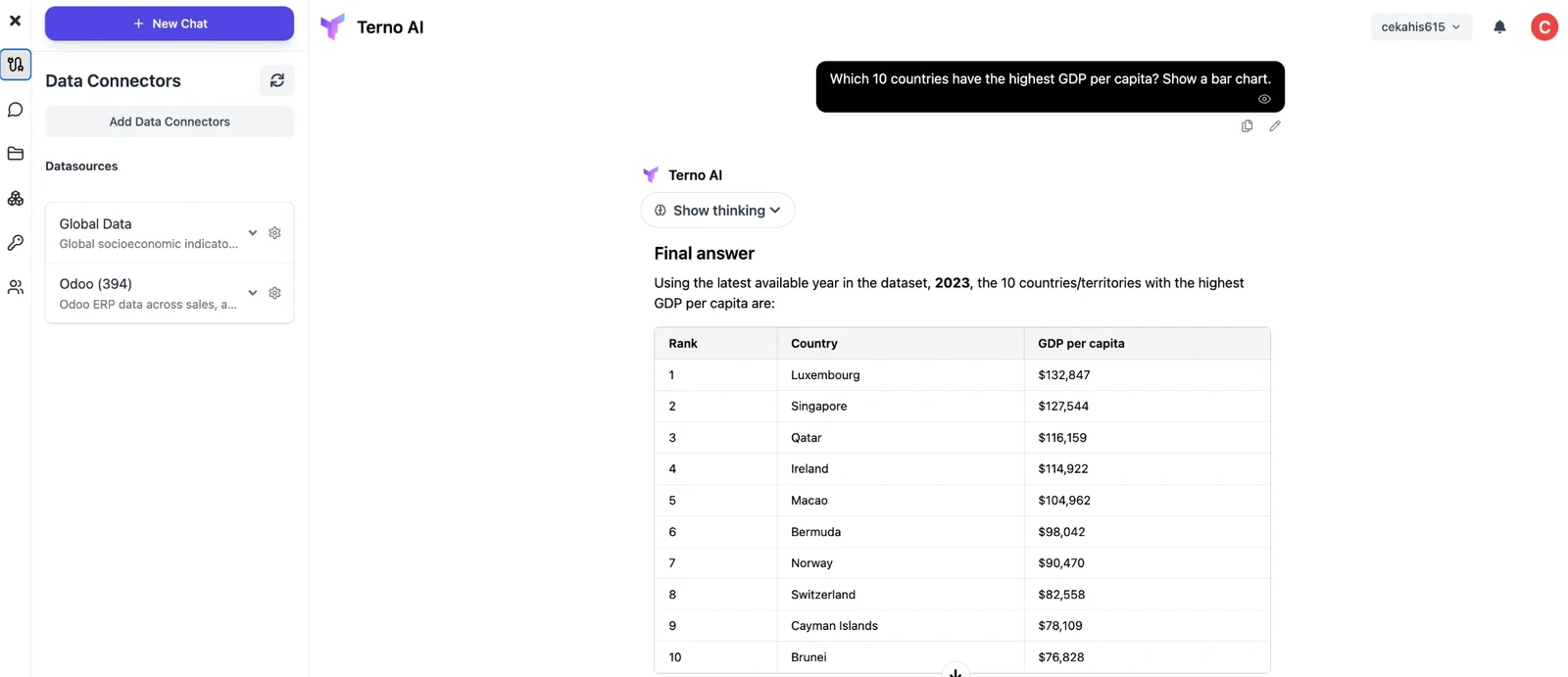
Answers can include tables, charts, and files such as CSVs.

Files Terno creates, such as CSV exports, appear as chips you can click to open or download.
Under each answer you’ll find these buttons:
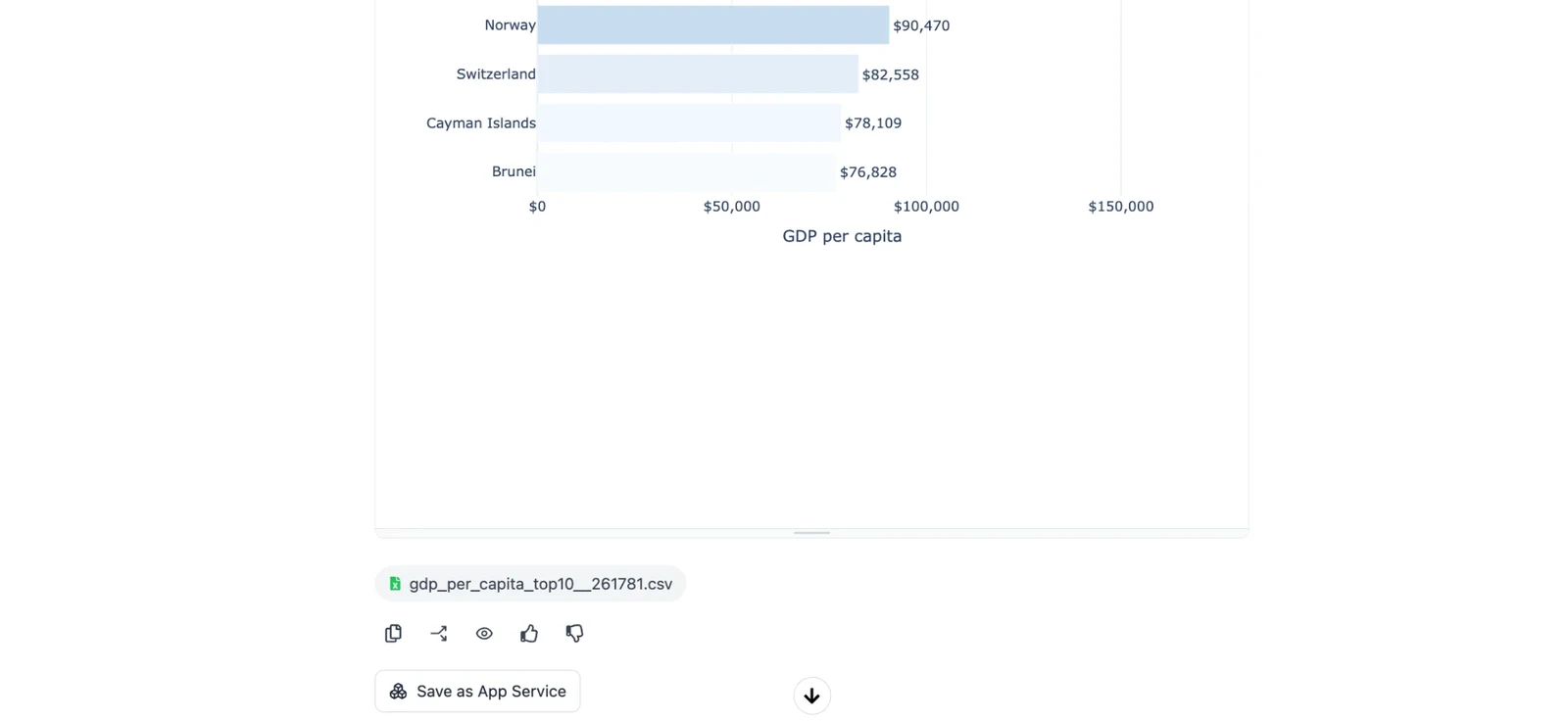
- Copy the answer.
- Branch the chat from this answer into a new chat.
- View prompt: see the prompt Terno sent to the model.
- Thumbs up / down to rate it. Your feedback helps us improve Terno.
- Save as App Service to keep an analysis you’ll want to run again. See App Services.
Keep going with follow-ups
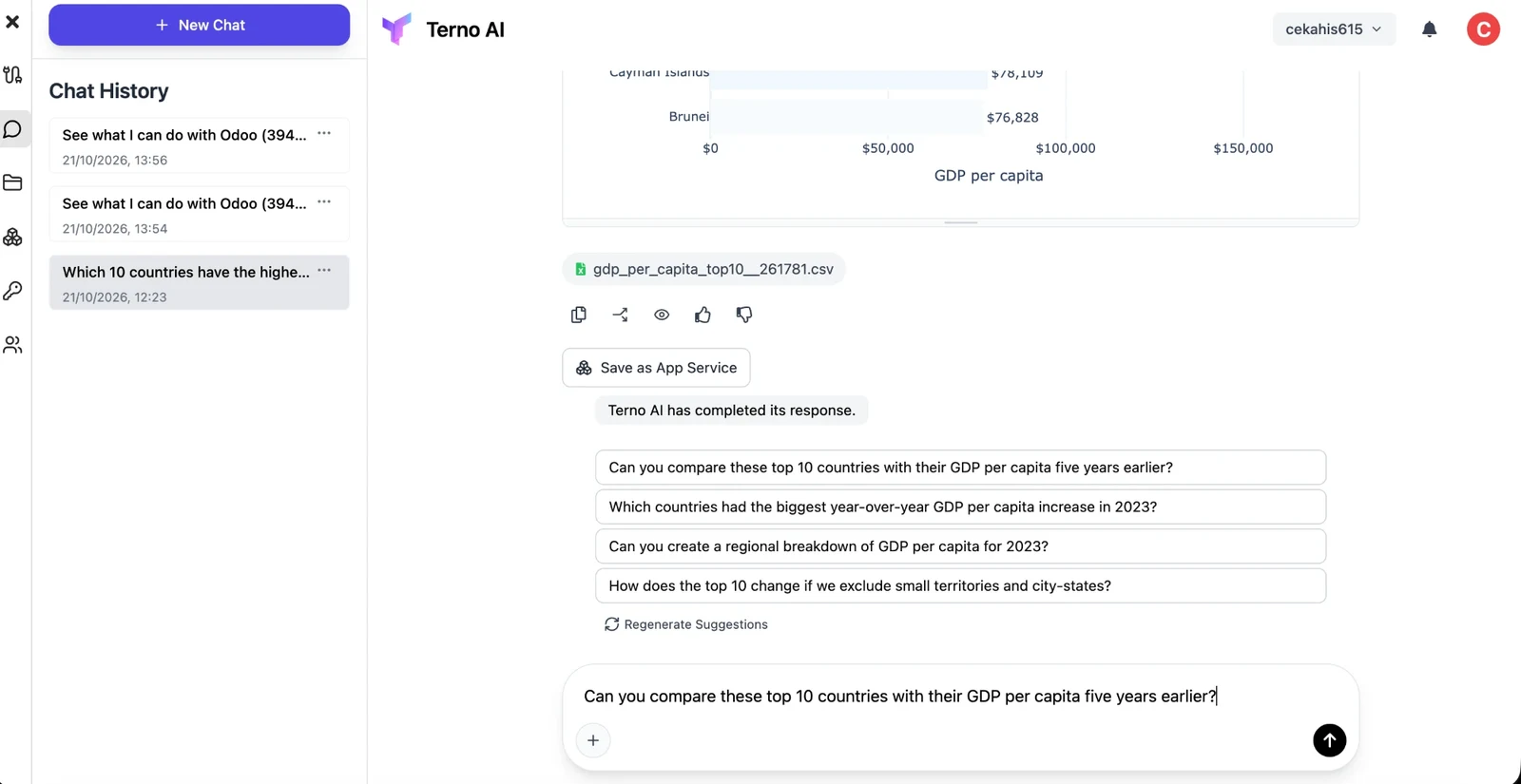
Section titled “Keep going with follow-ups”When Terno finishes, it says Terno AI has completed its response and suggests follow-up questions. Click Regenerate Suggestions for new ones.
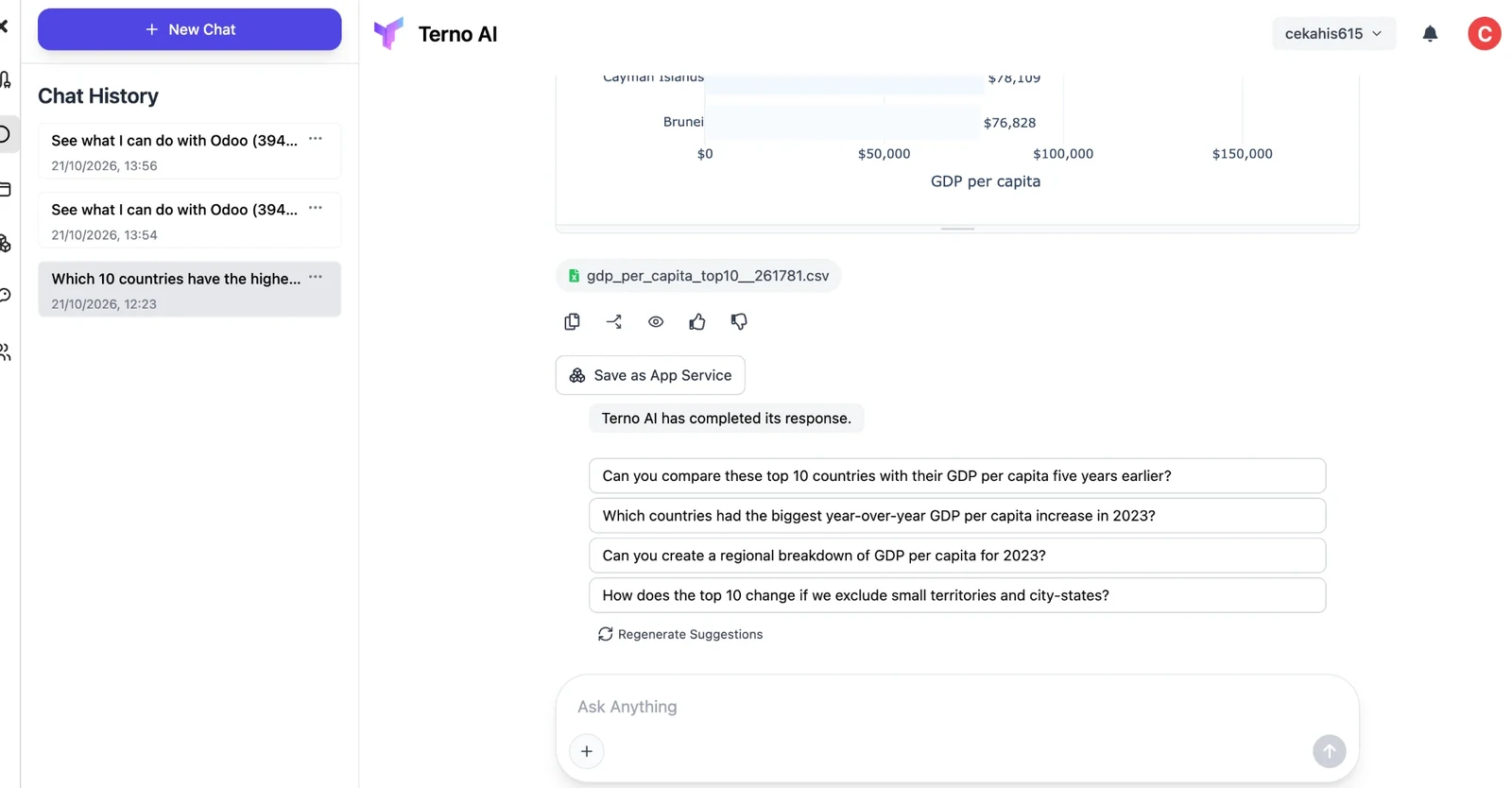
Click a suggestion to put it in the question box. Edit it if you like, then press Enter to send it.
The + menu
Section titled “The + menu”Click + in the question box for more options:
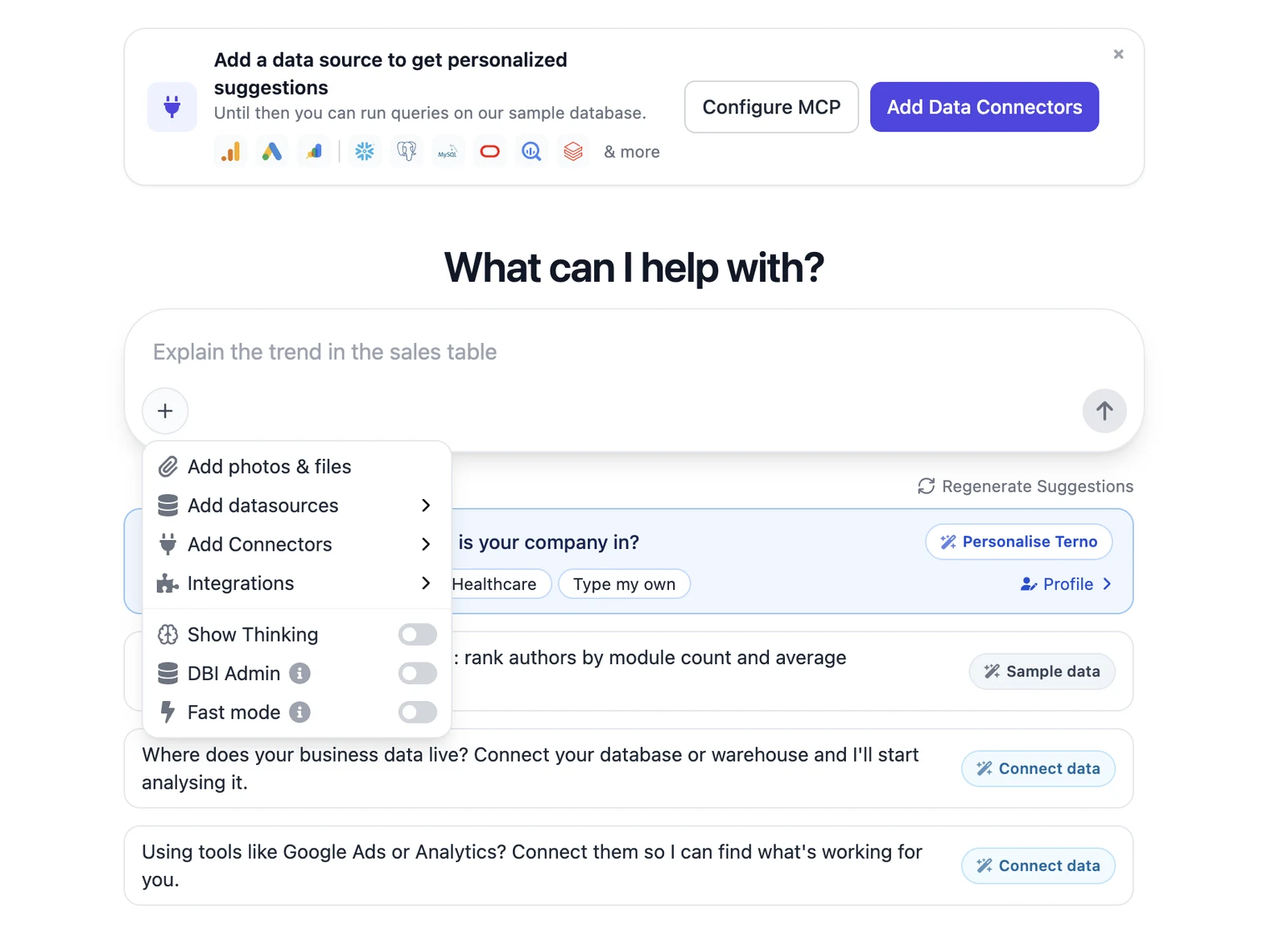
| Option | What it does |
|---|---|
| Add photos & files | Attach files to your message, up to 200 MB each. Terno can read spreadsheets, PDFs, images, and more. |
| Add datasources / Connectors / Integrations | Connect new data without leaving the chat. |
| Show Thinking | Show Terno’s reasoning as it works. |
| DBI Admin | Workspace admins only. Lets Terno manage data sources, update metadata such as descriptions, and write to the shared workspace memory. It never gets access to row-level data in this mode. |
| Fast mode | Normal explores the schema and explains each step. Fast leans on what Terno already knows and skips the narration. |