
Managing connections
Turn connections on and off, choose accounts, reconnect, disconnect, and delete datasources in Terno AI.
Who can do what
Section titled “Who can do what”| Action | Who |
|---|---|
| Ask questions about connected data | Everyone in the workspace |
| Add a datasource or connect an app | Workspace admins |
| Choose accounts, reconnect, or disconnect an app | Workspace admins |
| Give an account Read & write access | Workspace admins |
| Turn a datasource on or off, or delete it | The workspace owner |
The workspace owner is always an admin. Members who aren’t admins see View only on connector cards.
Datasources (databases and warehouses)
Section titled “Datasources (databases and warehouses)”Your datasources are listed in the sidebar’s Data Connectors panel. Click a datasource to see its tables. Click the gear icon for its settings.
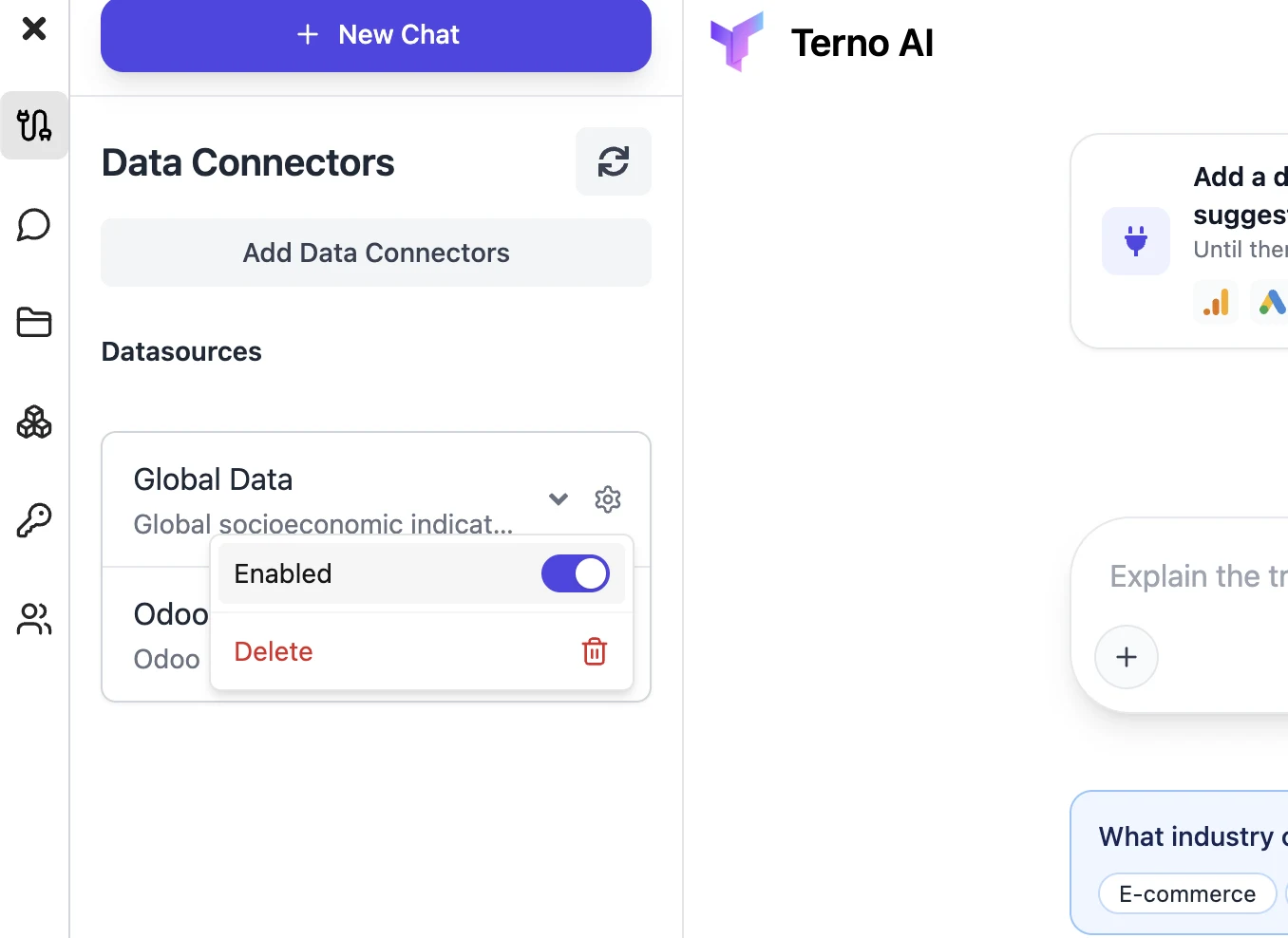
Turn a datasource on or off
Section titled “Turn a datasource on or off”Switch Enabled off to stop Terno from using a datasource without deleting it. Switch it back on any time.
Delete a datasource
Section titled “Delete a datasource”Click Delete. Terno shows what will be removed along with it, such as table descriptions, access rules, and saved examples. Then it removes the connection and everything Terno stored about it.
Change connection details
Section titled “Change connection details”To change a host, password, or other detail, delete the datasource and add it again with the new details.
App connectors
Section titled “App connectors”Open Add Data Connectors → Connectors and click a connected app. Admins see a Manage menu:
- Account selection: choose which accounts Terno can use, and at what level (No access, Read, or, for Google Ads, Read & write).
- Reconnect: sign in again, for example after a password change or when Terno says the connection expired. Your settings are kept.
- Disconnect: remove Terno’s access.
What disconnecting does
Section titled “What disconnecting does”- Terno deletes its stored tokens and stops fetching new data straight away.
- Your account selections, notes, and earlier chats are kept, so reconnecting later picks up where you left off.
- Nothing changes in the app itself.
To also remove Terno from the app’s side, revoke its access in that app’s account or security settings.
Expired connections
Section titled “Expired connections”Some apps end Terno’s access after a while, or when you change your password. Terno then says the source needs reconnecting. An admin clicks Manage → Reconnect to fix it.
Connections are shared
Section titled “Connections are shared”A connection belongs to the whole workspace, not to the person who added it. Everyone in the workspace can ask questions about it, within the rules in Access control.